

How does it work?
Each franchise in the network becomes a unit in the brand’s account. The unit has its own WhatsApp number, its own team, and its own cashback automation. When a store records a sale, Bevits creates the cashback and sends the message to the customer through the WhatsApp of the store where they bought. The franchisor tracks the sales of all units in one place. Each franchisee sees only the customers and sales of their own store. A store can record a sale in two ways:- From the Bevits sales screen: go to Sales → New sale, on a computer or a phone.
- From the store’s WhatsApp: the team sends the sale details to the Bevits sales agent, without opening the dashboard.
Before you start
Have these ready:- Owner or administrator access to the brand’s account (franchisor), with permission for integrations and store settings.
- The list of franchises, with name, address, and the person in charge of each.
- One phone per store, with the WhatsApp Business App active on the unit’s number.
- Access to the Meta account that manages the brand’s business portfolio.
- The cashback rules: percentage, safety cap, expiry, and minimum next-purchase amount. See how each rule works in Giftback.
Setup overview
The franchisor repeats the steps below for each franchise. There is no global switch for WhatsApp sales: authorizing the store in step 4 turns the agent on for it.Step by step
1
Connect the franchise's WhatsApp
Connect the store’s number in coexistence, following the
WhatsApp coexistence guide.
The number keeps working in the WhatsApp Business App on the store’s phone,
and it also starts sending messages through the official API.Connect all numbers to the same business portfolio of the brand.
The number you connect first becomes the account’s default. It is used
for the brand’s campaigns. Each store’s cashback messages go out through
the unit’s own number, as the next steps show.
2
Create the unit
Click your email in the bottom-left corner and go to Settings →
Store → Units tab → New unit.Fill in: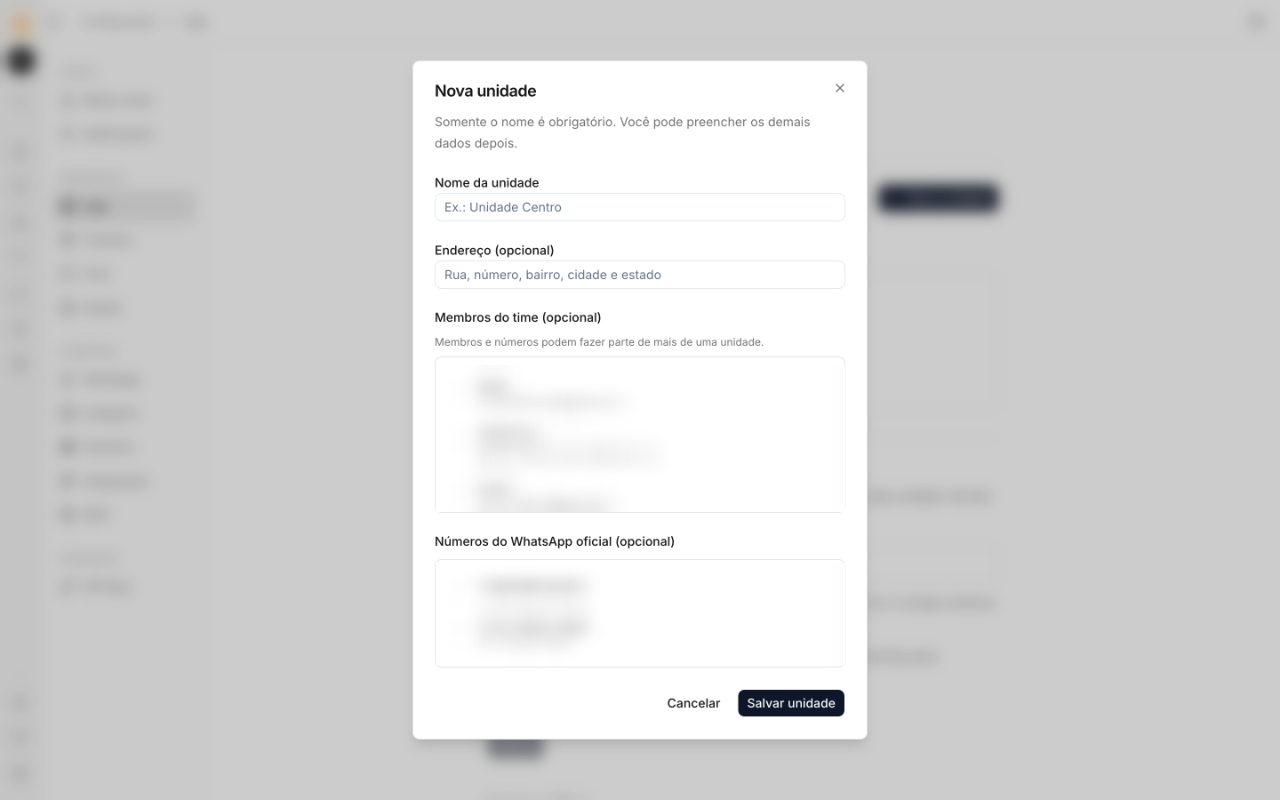 The unit shows up in the list with its number of members and linked
numbers.
- Unit name: use the name your team recognizes, for example
Bennemann Centro. - Address (optional): street, number, neighborhood, city, and state.
- Team members (optional): the people at the franchise who already have Bevits access. You can add more later, in step 5.
- Official WhatsApp numbers: select the number connected in step 1.
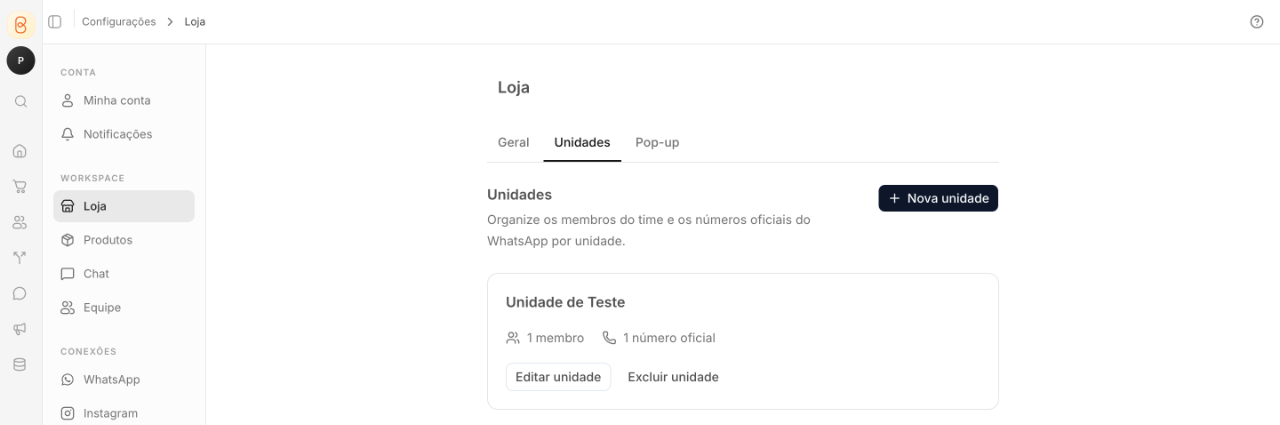
The unit shows up in the list with its number of members and linked
numbers.3
Create the unit's cashback automation
Go to Automations and create an automation for the unit. Give it a name
that identifies the store, for example
Cashback · Bennemann Centro.Build the automation with these blocks:- Trigger: the Physical store origin and the Manual sale event.
- Coupon: set the cashback percentage, the safety cap, and the expiry.
- WhatsApp: click Add the template and write the cashback message. Under Official WhatsApp account, choose the unit’s number. This is the number the customer receives the message from.
- Timer and a second WhatsApp (optional): a reminder a few days before the coupon expires.
Example text:
Hi, [customer name]! Thanks for shopping at Bennemann Centro. You earned [cashback amount] in cashback to use until [expiry date]. Just show coupon [coupon code] on your next purchase.Submit the template for Meta approval. When it shows as Approved, turn on the automation. It will then appear in the Cashback automation field on the sales screen.
Each sale generates a coupon. Use a single Coupon block per automation.
SMS blocks can also be part of the sequence.
4
Authorize the store in the sales agent
With WhatsApp sales, the store team records a sale by sending a message to
the Bevits sales agent, directly from the store’s WhatsApp.Under Settings → Store → Units tab, scroll to Sales through
WhatsApp. Under Authorized stores, for each unit:
- Check the Number that sends the sales. If the store has a single number, it is already selected.
- Under This store’s cashback automation, choose the automation created in the previous step. If the store has only one, it is already selected.
- Click Authorize. The unit now shows as Authorized and the section status changes to On.
5
Give the franchise team access
Invite the franchisee and the salespeople under Settings → Team. After
the invite is accepted: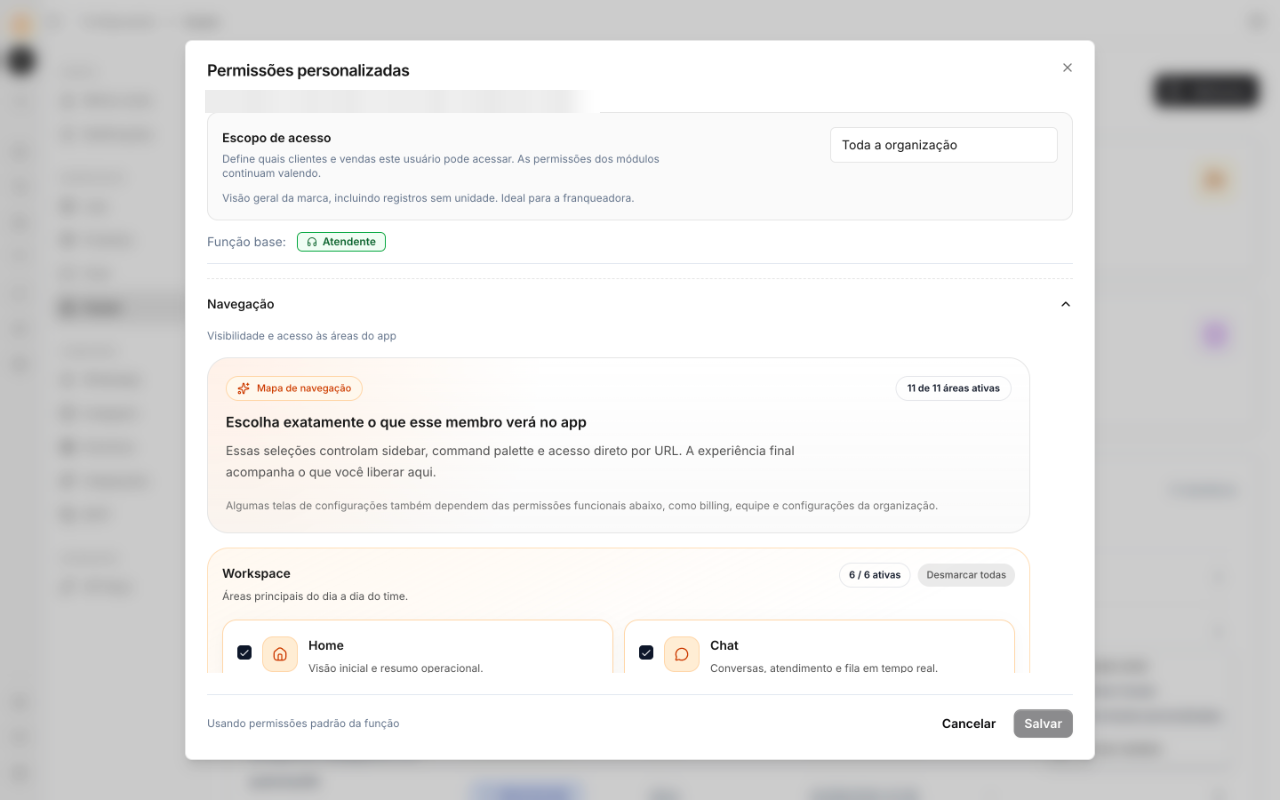 With this scope, the person can access only Sales and Customers, and
sees only the records from their units. The franchisor’s team keeps
Entire organization and tracks the whole network.
- Go back to the unit under Settings → Store → Units and add the person under Team members.
- Under Settings → Team, open the person’s menu and click Custom permissions.
- Under Access scope, choose Linked units only and save.
With this scope, the person can access only Sales and Customers, and
sees only the records from their units. The franchisor’s team keeps
Entire organization and tracks the whole network.A person can belong to more than one unit. This is useful for a franchisee
with several stores or for a regional supervisor.
Store routine
Record a sale from the sales screen
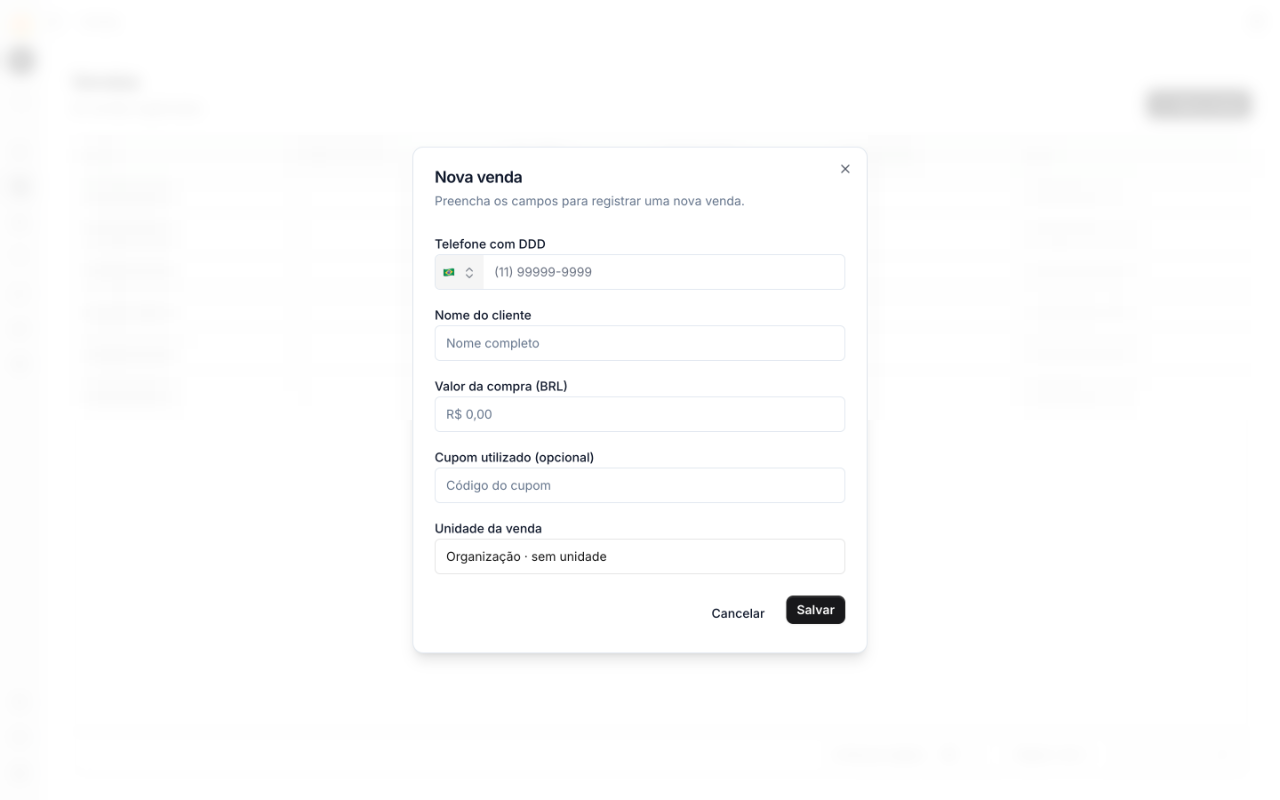
- Under Sales, click New sale.
- Type the phone number with area code. If the customer is already registered at your store, Bevits fills in the name.
- Enter the purchase amount.
- Under Sales unit, check the unit. For someone with access to a single store, it is already selected.
- If the customer used a cashback coupon, enter the code under Coupon used.
- Check Trigger cashback automation. The screen only shows the automations of the selected unit; if there is one, it is already chosen. Click Save. The message always goes out from the WhatsApp of the unit selected in Sales unit.
 The customer gets the cashback right away, through the unit’s WhatsApp.
Record a sale through WhatsApp
In the store’s WhatsApp Business App, send a message to the Bevits sales agent. Start with nova venda (new sale), then send the customer’s name, phone number with area code, and purchase amount. It can be one message or several:If the store sends a sale with the same phone number and amount as another
sale from the last 24 hours, the agent asks for confirmation before it runs the
automation. Reply confirmo a venda (confirm the sale) to record a new
purchase, or é outra compra (it’s another purchase) if it is a different
record.
Customer who buys at another store in the network
The customer record belongs to the brand. If the customer buys at another franchise, Bevits recognizes the phone number and adds the new unit to the record, without duplicating the customer. Each store only sees what happened there: the customer’s purchases, coupons, and totals at that unit. The full history across the network is visible only to the franchisor.Track the sends
The franchisor tracks everything in two places:- Sales: all sales across the network, with the unit for each one.
- Settings → Store → Units → Latest cashback triggers: the latest cashback sends and the status of each one.
Checklist for each new franchise
- Store’s number connected in coexistence on the brand’s portfolio.
- Unit created with name, address, and WhatsApp number.
-
Cashback · unit nameautomation active, with the template approved on the unit’s number. - Unit Authorized under Sales through WhatsApp.
- Franchisee and salespeople invited, linked to the unit, and set to the Linked units only scope.
- Sales agent number saved in the store’s phone.
- Test sale recorded and cashback received on WhatsApp.
Common issues
For questions about the network setup, email us at hey@bevits.com or use
the support chat in the platform.