

How do I connect a WhatsApp Business App number?
With coexistence, the number stays active in the WhatsApp Business App and also sends and receives messages through Meta’s official API. Use this flow when the number is already in the app and you don’t want to lose the chat history or the conversations you handle on the phone. For a new number that isn’t on WhatsApp, use the Cloud API card. The manual connection, with token and IDs, is in Official WhatsApp.Requirements
- You need to be an owner or administrator of the Bevits account, with the integrations permission.
- A phone with the WhatsApp Business App installed and the number active on it. Keep the device at hand: pairing needs a QR code scanned in the app.
- Access to the Meta account that manages the company’s business portfolio.
- Pop-ups allowed in the browser.
Step by step
1
Open the WhatsApp settings
In Bevits, click your email in the bottom-left corner and go to
Settings → WhatsApp → Official API → Configure.
2
Choose the Coexistence card
Under New connection, click Connect with Coexistence.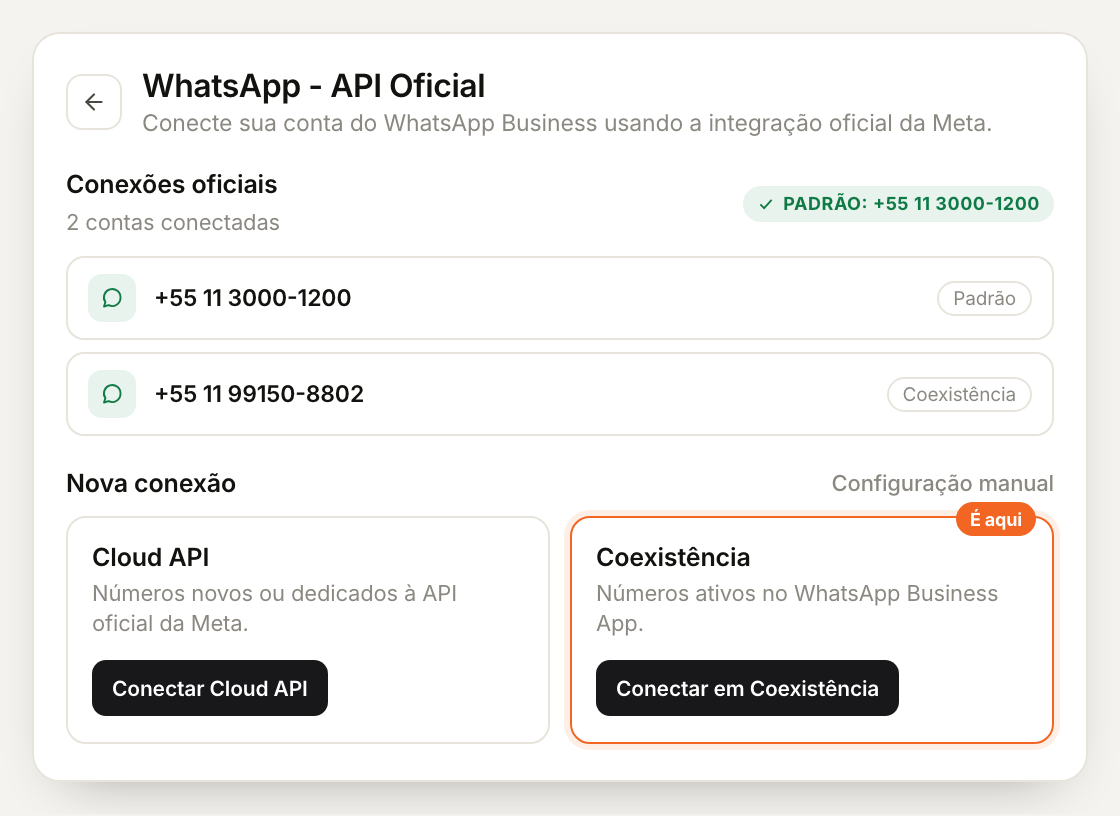
3
Sign in with the Meta account
Sign in with the Meta account that manages the business portfolio. Choose
the same portfolio as the other numbers. If Meta asks for the WhatsApp
Business Account (WABA), use the same one or create a new one: both work in
Bevits.
4
Enter the phone number
Type the number that is active in the WhatsApp Business App, with country
and area codes.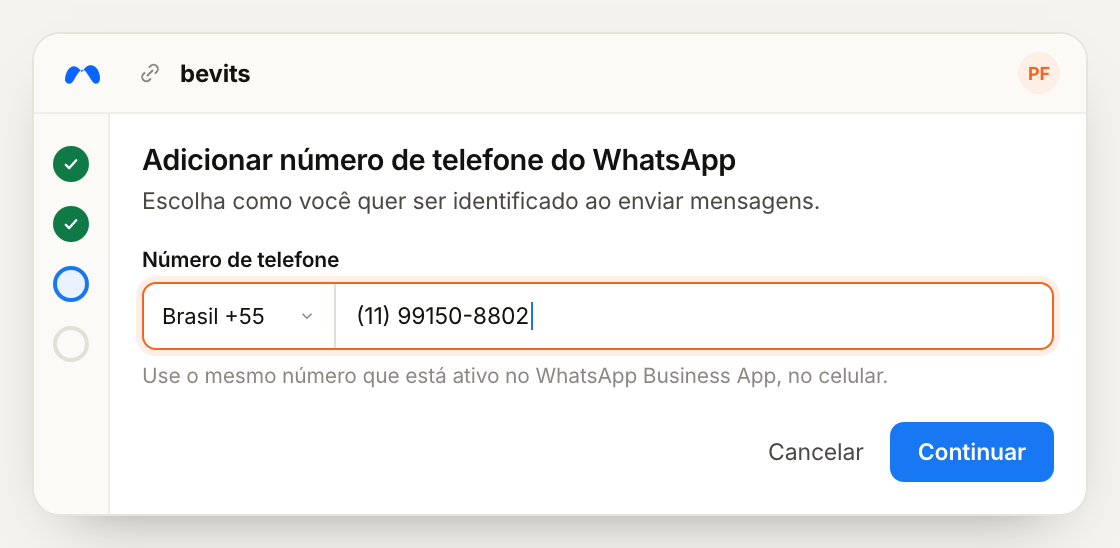 Check that the profile shown belongs to the right company. Meta reads the
profile from the app.
Check that the profile shown belongs to the right company. Meta reads the
profile from the app.
Check that the profile shown belongs to the right company. Meta reads the
profile from the app.The order of the screens can vary. If Meta asks for the number before the
portfolio, enter it and continue: the flow is the same.
5
Pair the phone
Pairing happens on two screens: Meta’s window on the computer and
WhatsApp Business on the phone.In Meta’s window, pairing starts with the QR code: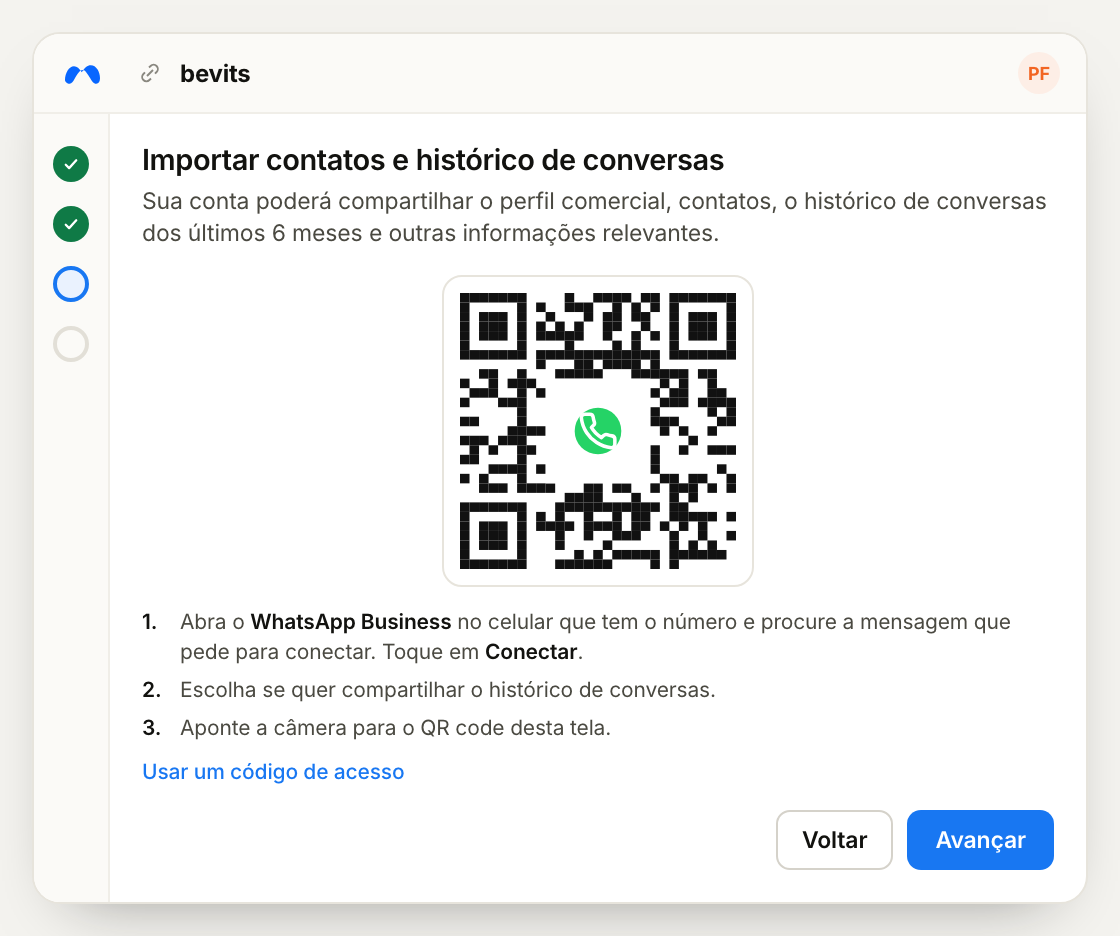 On the phone, open WhatsApp Business and tap the message from the official
Facebook Business account. Tap Connect and follow the instructions until
the app opens the camera. Point it at the QR code.If the camera fails or if the window is open on the phone itself, click
Use an access code instead:
On the phone, open WhatsApp Business and tap the message from the official
Facebook Business account. Tap Connect and follow the instructions until
the app opens the camera. Point it at the QR code.If the camera fails or if the window is open on the phone itself, click
Use an access code instead: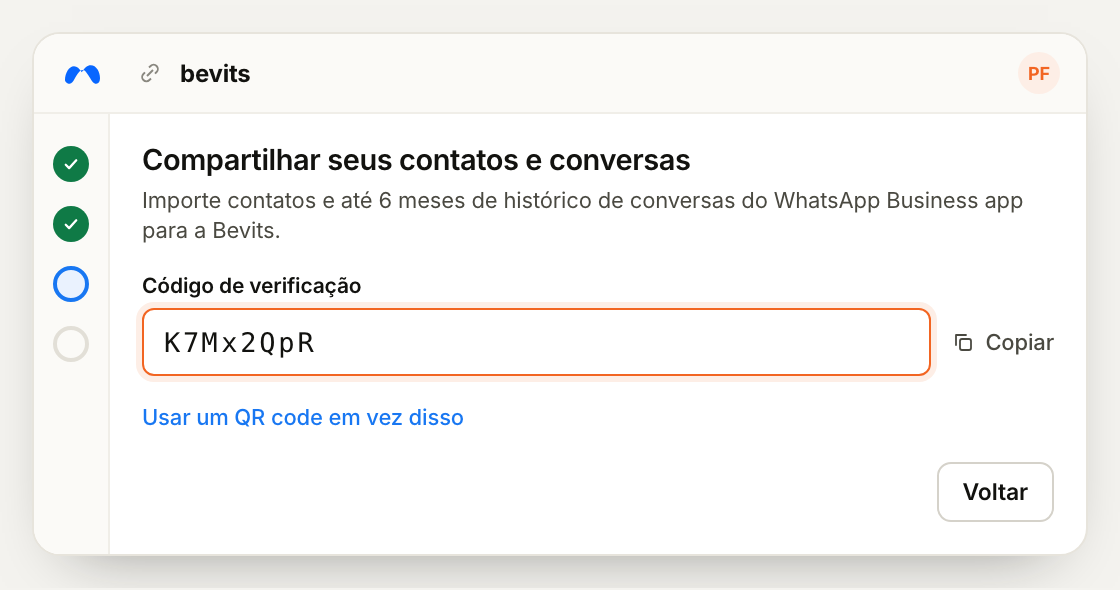 Copy the verification code shown in the window and paste it in the app, in the
field that asks for the access code.During pairing, the app asks whether you want to share the chat history.
Allow it: this is what brings the account contacts and history to the official
API.If the QR code expires, close the window and repeat step 2.
Copy the verification code shown in the window and paste it in the app, in the
field that asks for the access code.During pairing, the app asks whether you want to share the chat history.
Allow it: this is what brings the account contacts and history to the official
API.If the QR code expires, close the window and repeat step 2.
On the phone, open WhatsApp Business and tap the message from the official
Facebook Business account. Tap Connect and follow the instructions until
the app opens the camera. Point it at the QR code.If the camera fails or if the window is open on the phone itself, click
Use an access code instead:Copy the verification code shown in the window and paste it in the app, in the
field that asks for the access code.During pairing, the app asks whether you want to share the chat history.
Allow it: this is what brings the account contacts and history to the official
API.If the QR code expires, close the window and repeat step 2.6
Finish and check the connection
When pairing ends, the number appears under Official connections.Click Templates to sync the WABA templates.
The first connected number becomes the default. To change it, click
Make default on the number that should send the campaigns.
Connect more numbers
Bevits doesn’t limit how many official numbers an account can have. Repeat the steps for each new number. The limit belongs to Meta and applies to the business portfolio: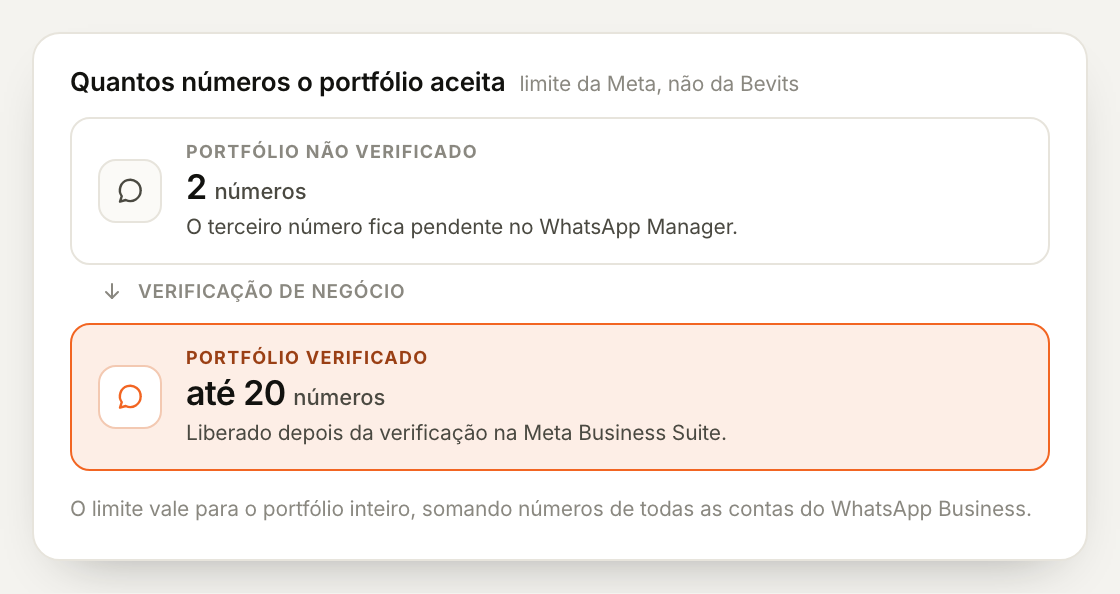
- Unverified portfolio: 2 registered numbers, counting all WhatsApp Business accounts in the portfolio.
- Verified portfolio: up to 20 numbers.
What doesn’t work
- Using Bevits’ Meta account or another company’s account. The portfolio must belong to your company. Outside accounts can get the portfolio blocked.
- Connecting a number that is already on the official API. Coexistence only works for a number that is in the WhatsApp Business App.
- Using a number from regular WhatsApp. Coexistence requires the WhatsApp Business App. Register the number in the app first; it stops working in regular WhatsApp.
- Keeping the blue badge (OBA). Coexistence doesn’t support the official account badge. Use Meta Verified for Business.
Common issues
For questions about the connection, email us at hey@bevits.com or use the
support chat in the platform.