> ## Documentation Index
> Fetch the complete documentation index at: https://docs.bevits.com/llms.txt
> Use this file to discover all available pages before exploring further.

# Official WhatsApp

> Official WhatsApp integration

## How do I integrate Official WhatsApp with Bevits?

The WhatsApp integration lets you send messages to customers through the WhatsApp API. Follow the steps below to integrate WhatsApp with Bevits.

### Prerequisites

* A phone number that is not currently connected to WhatsApp.

### 1. Create an app in Facebook Developers

To get started, you must have or manage a developer account in [Facebook Developers](https://developers.facebook.com/apps/).

After creating your account, create an app that can communicate with WhatsApp Business:

* Click **Create app**.
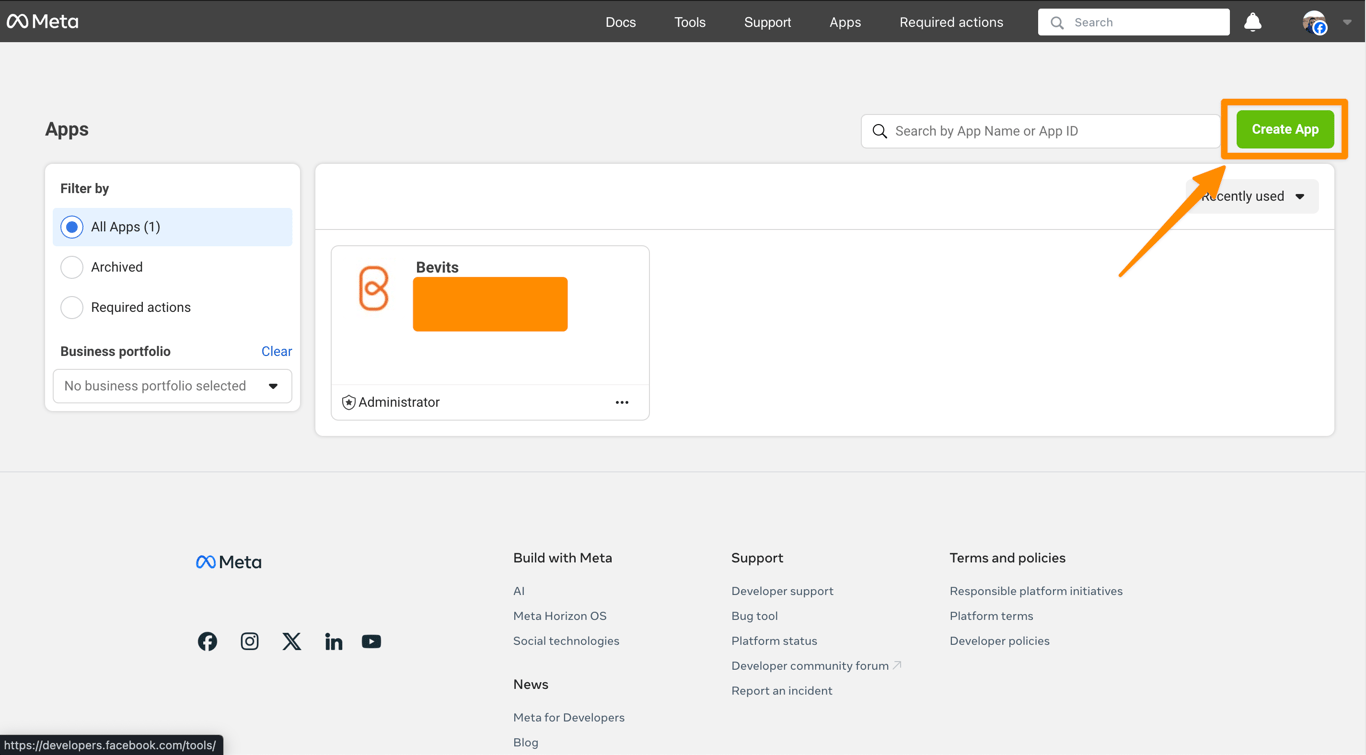
  ![Create an app in Facebook Developers](https://imagedelivery.net/9tWkA7hllcrZnTVq32aKIg/d0aa9c0f-0d8b-4d57-2b7d-c005b742de00/public)

* Complete the fields with valid information.
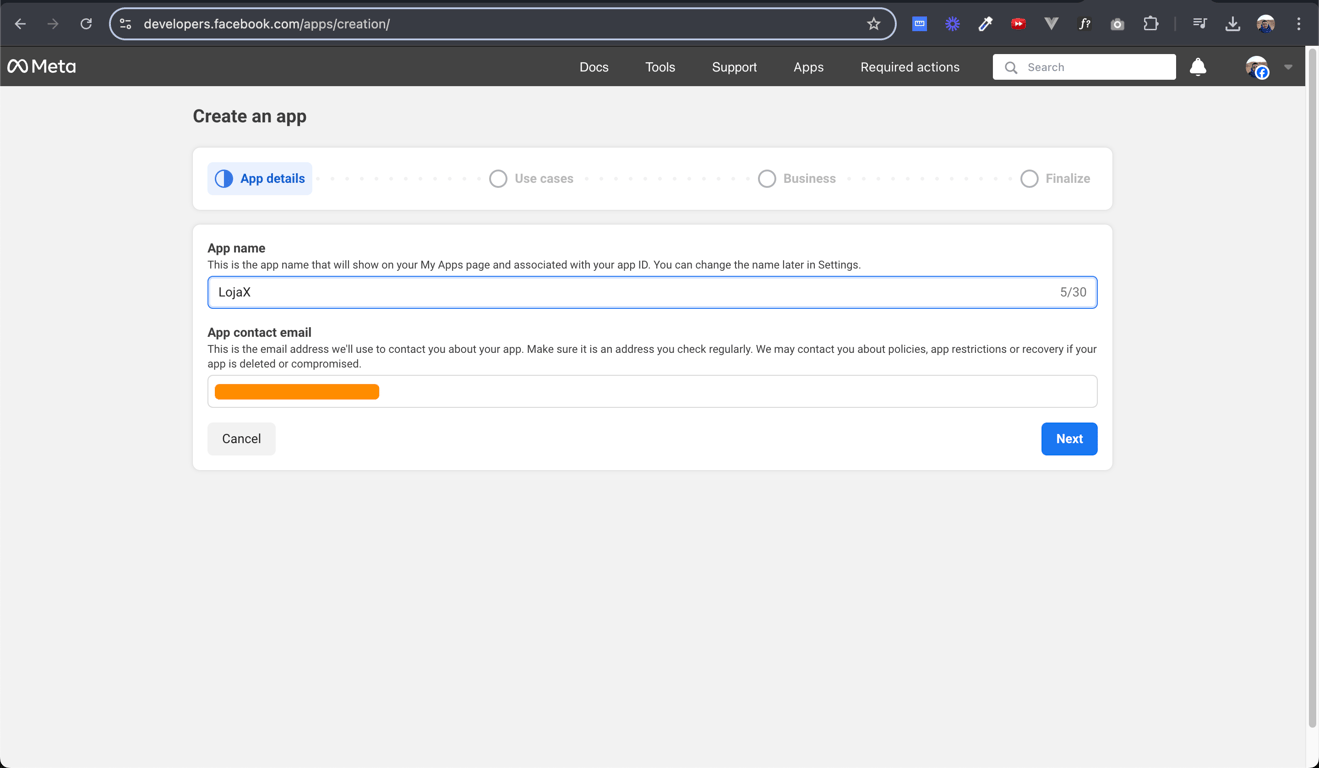
  ![Complete the fields with valid information](https://imagedelivery.net/9tWkA7hllcrZnTVq32aKIg/61d9e8a3-1105-4f15-fb55-a7fe6baaf200/public)

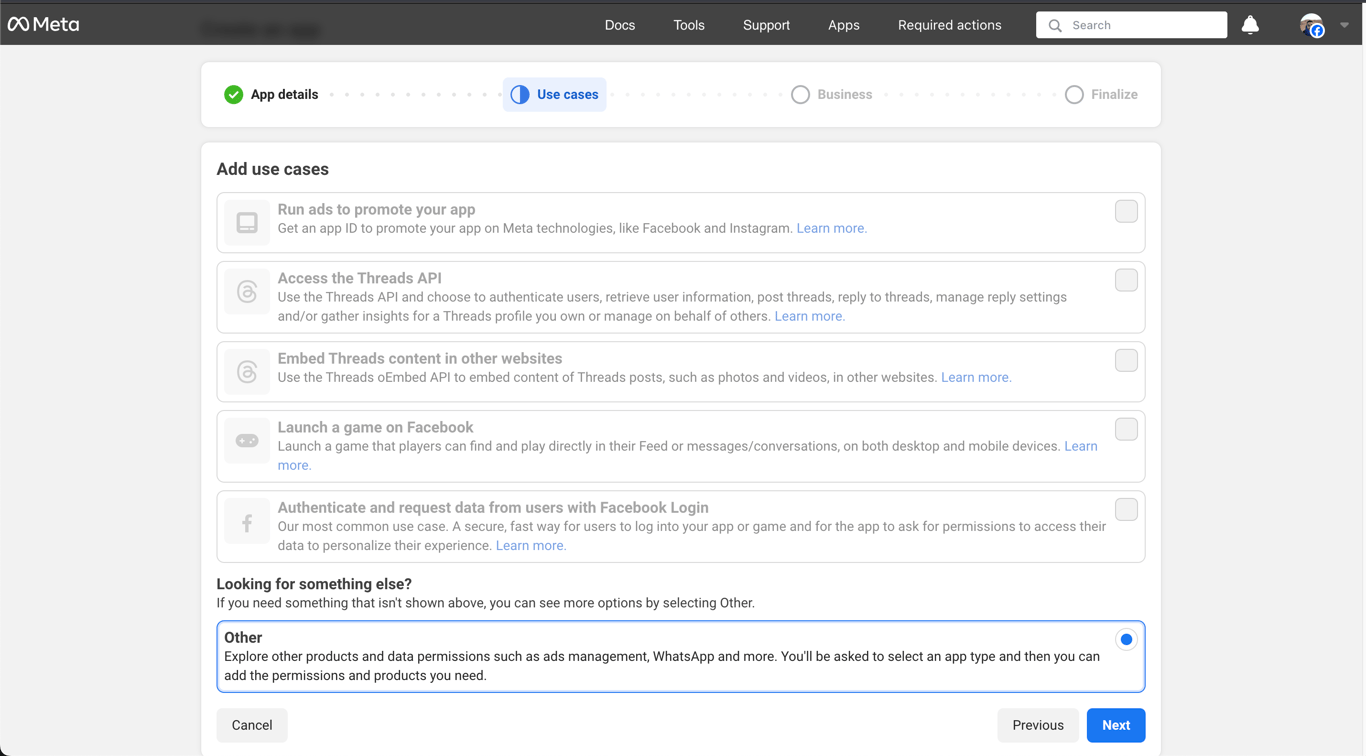
* Under use cases, select **Other**.
  ![Select Other under use cases](https://imagedelivery.net/9tWkA7hllcrZnTVq32aKIg/5634abd2-f923-456e-c2fe-7d91f8141300/public)

* Select **Business** as the app type.
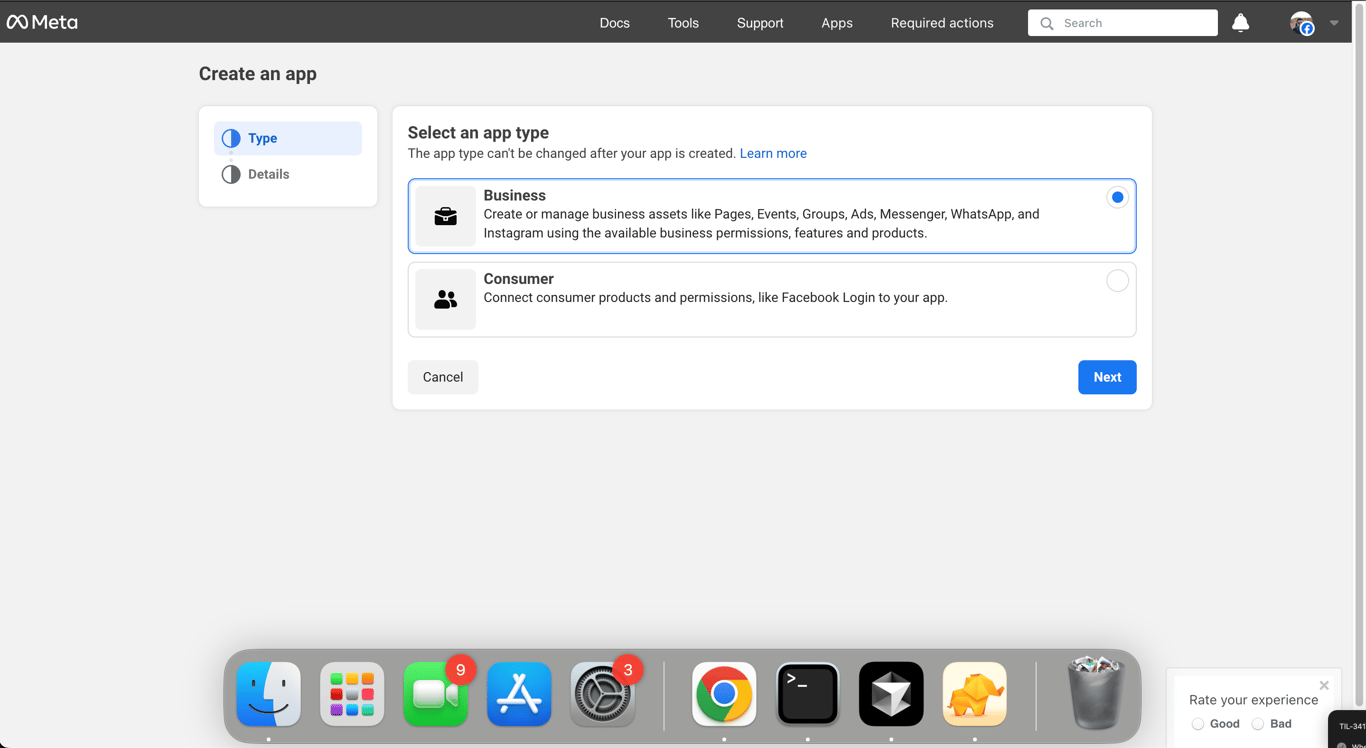
  ![Select Business as the app type](https://imagedelivery.net/9tWkA7hllcrZnTVq32aKIg/e18510a2-5842-48e3-57e7-2a419930aa00/public)

* Complete the fields with valid information and click **Create app**.
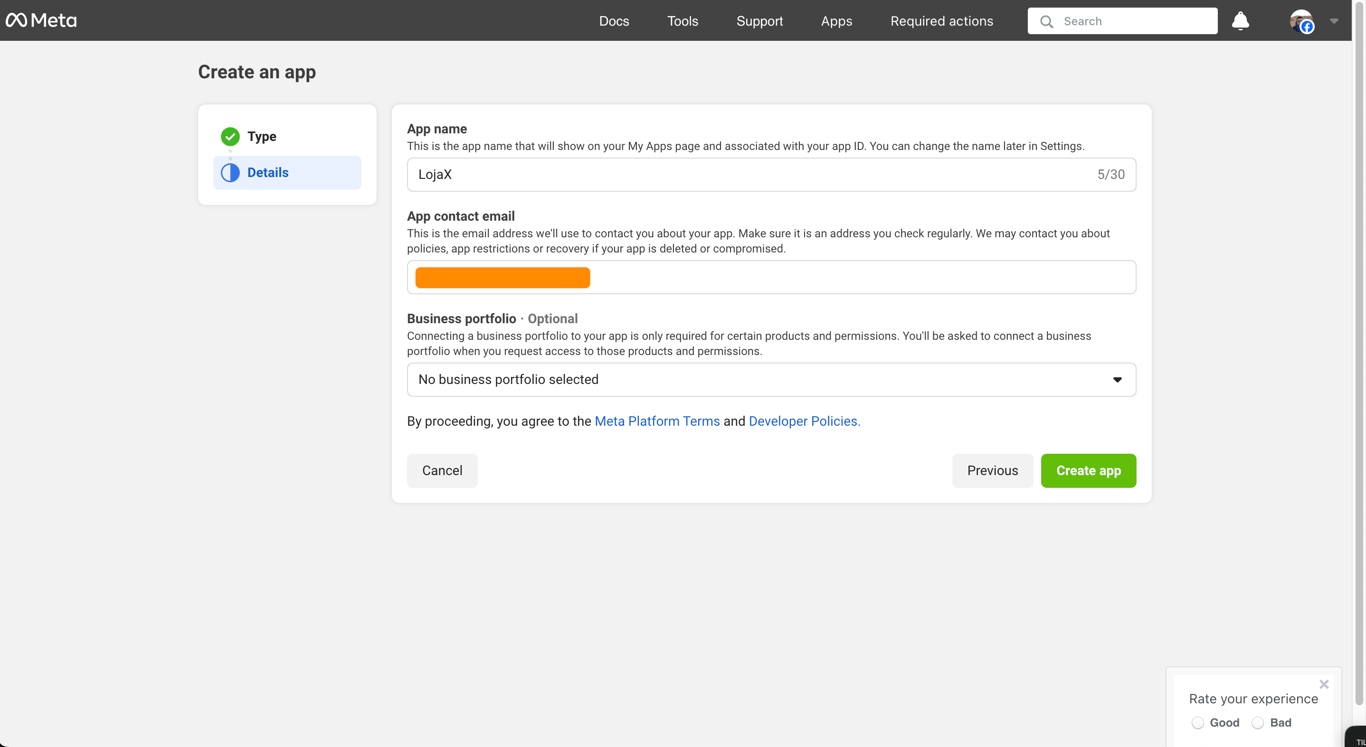
  ![Complete the fields and create the app](https://imagedelivery.net/9tWkA7hllcrZnTVq32aKIg/1d518bdb-2e1b-4975-2cf8-19c89f9b8e00/public)

### 2. Configure WhatsApp

On your app's main screen, find WhatsApp and click **Set up**.
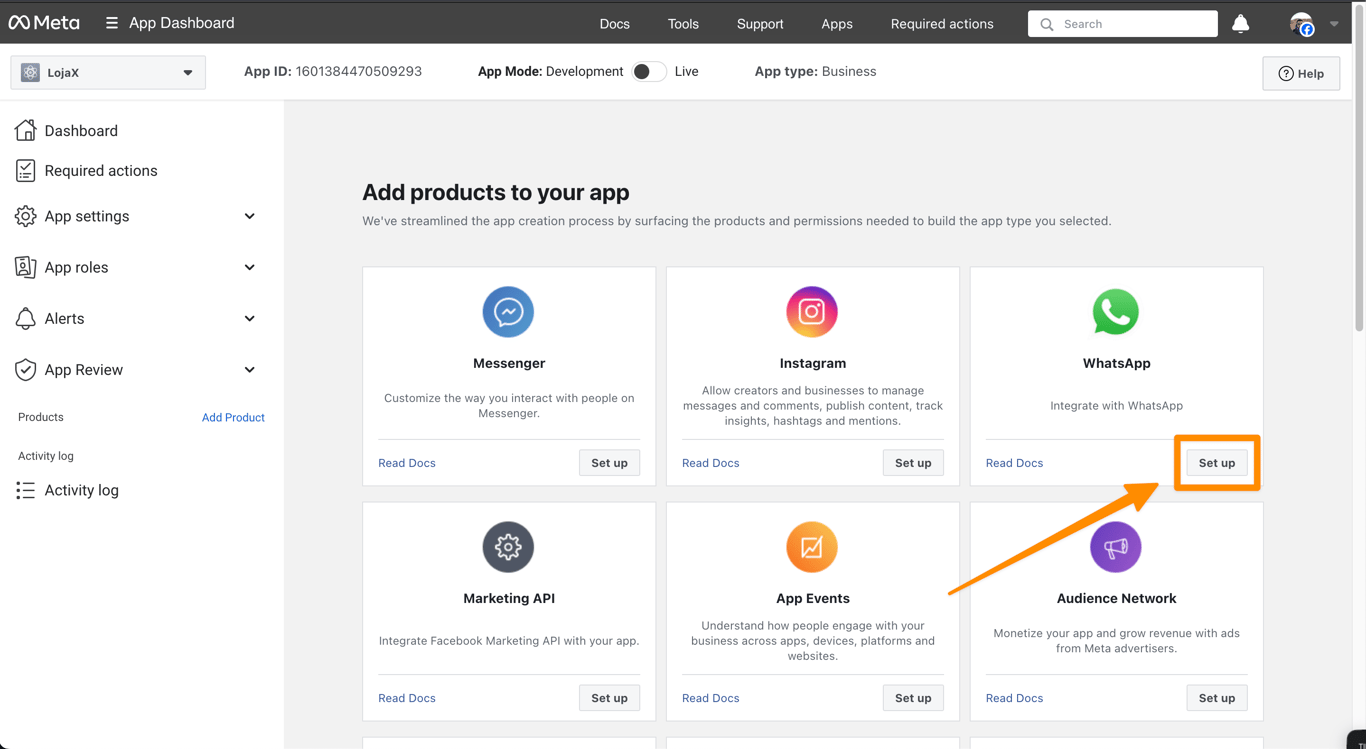
![Click Set up](https://imagedelivery.net/9tWkA7hllcrZnTVq32aKIg/16dc9c8e-c4e6-4ea5-fd23-ef2fea718300/public)

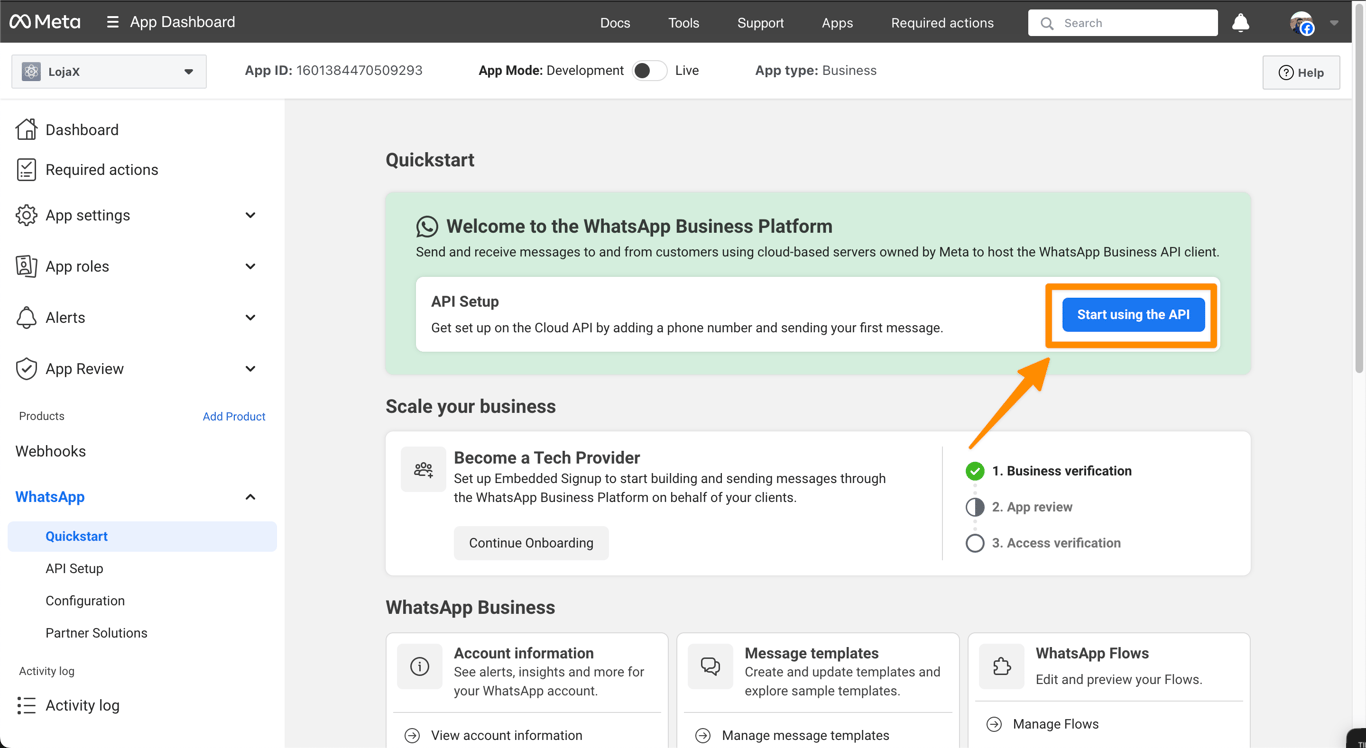
Select **Start using the API**.

![Select Start using the API](https://imagedelivery.net/9tWkA7hllcrZnTVq32aKIg/12053bfd-c294-4ecc-c10c-b3e463137600/public)

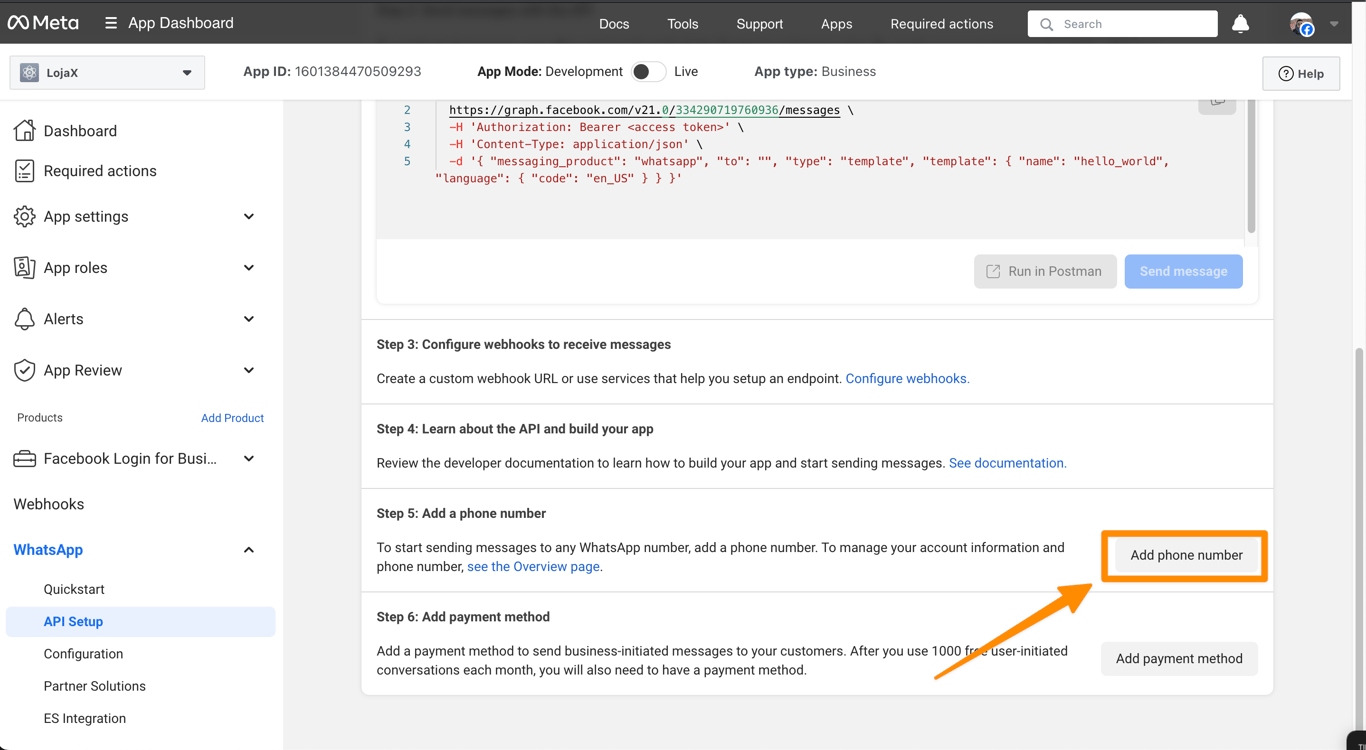
Scroll to step 5 and click **Add phone number**.
![Click Add phone number](https://imagedelivery.net/9tWkA7hllcrZnTVq32aKIg/eda9a9cc-0c68-4359-650c-9d1c138eeb00/public)

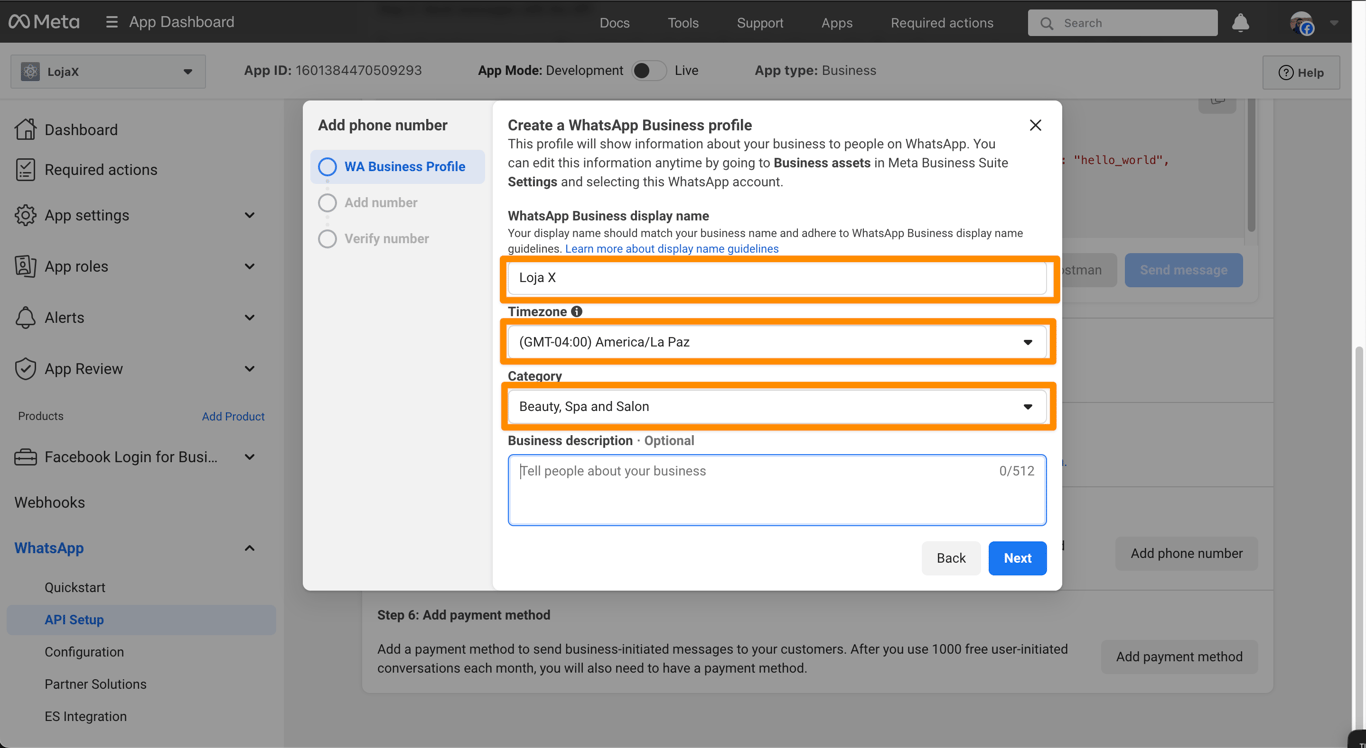
In the new window, complete the requested information and click **Continue**.
![Complete the requested information](https://imagedelivery.net/9tWkA7hllcrZnTVq32aKIg/7bf4efe1-d379-43e1-324b-9f176d957e00/public)

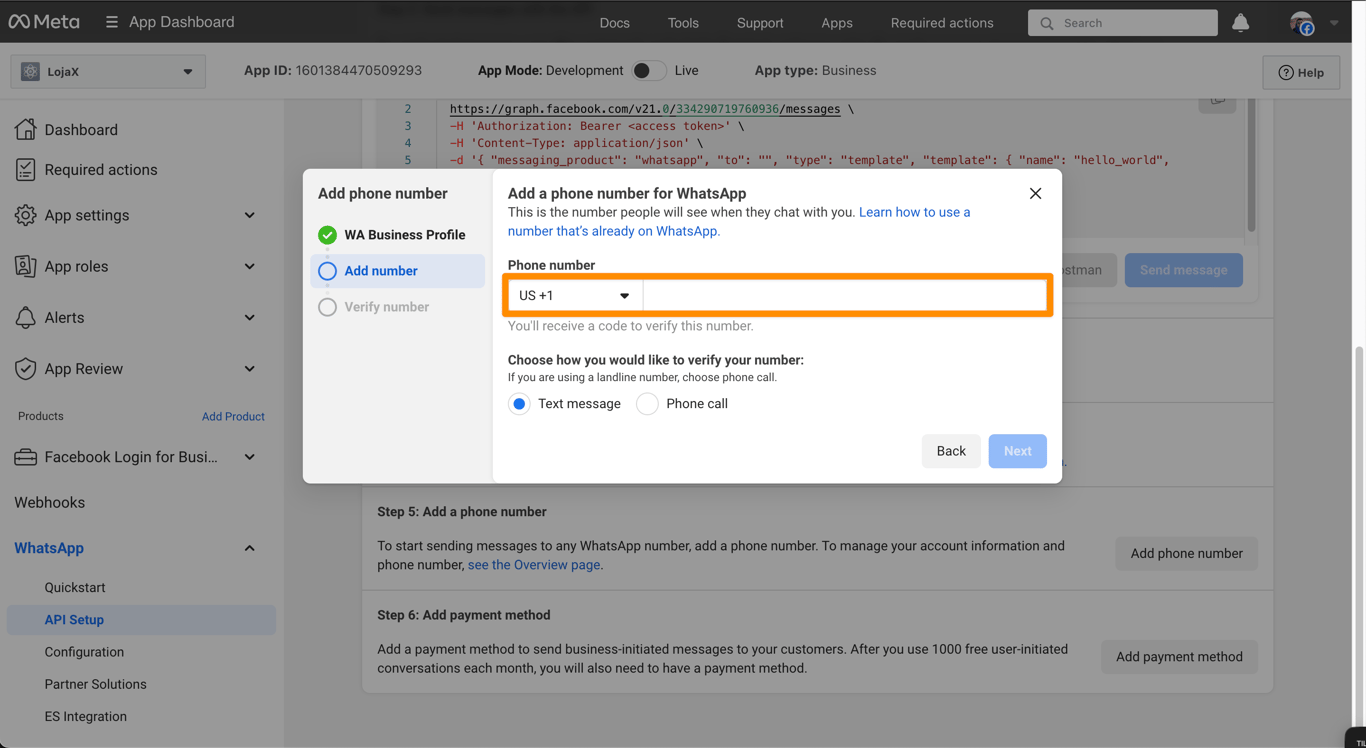
In the next step, add the WhatsApp number you want to use.

<div
  style={{
backgroundColor: "#ffe5d4",
padding: "1rem",
color: "#000",
borderRadius: "0.5rem",
}}
>
  ⚠️ This phone number must not be linked to a WhatsApp Business account.
</div>

<br />

![Add the WhatsApp number](https://imagedelivery.net/9tWkA7hllcrZnTVq32aKIg/1f580524-e64c-419e-a2f0-e22869d42000/public)

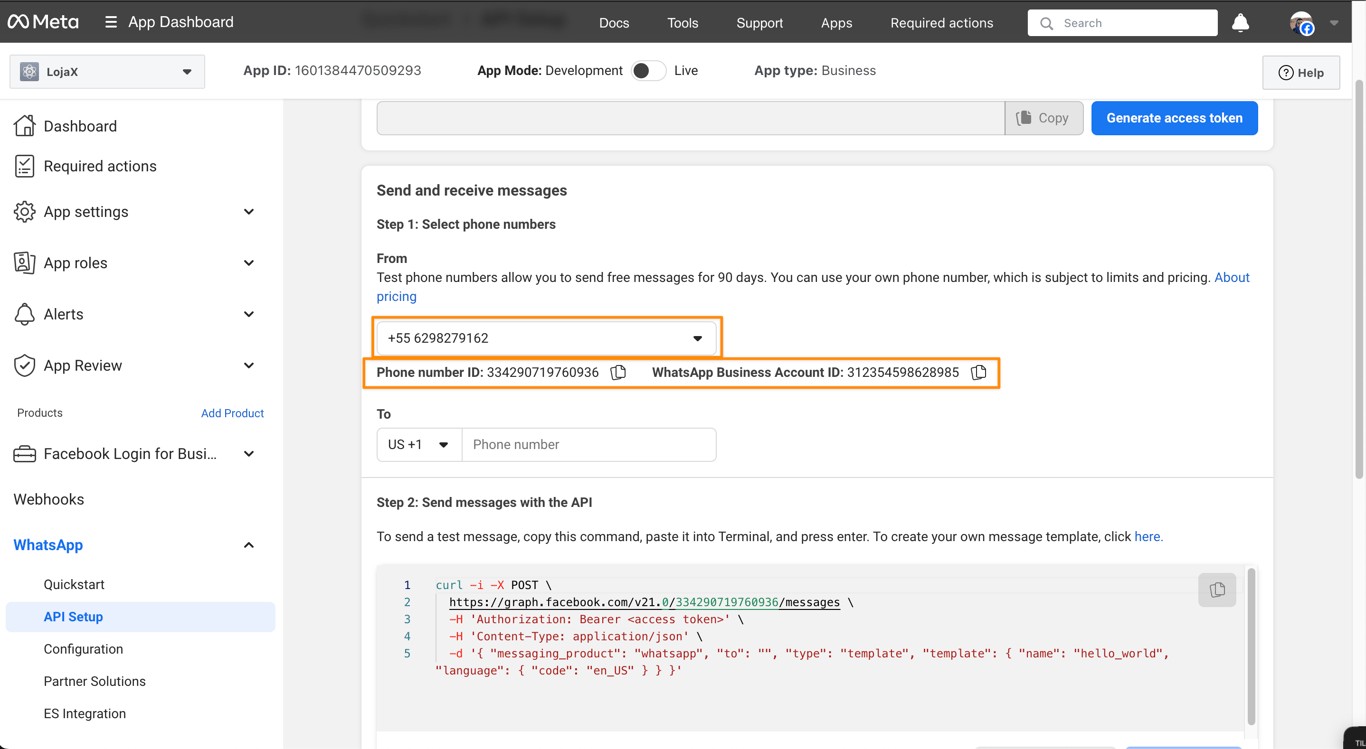
Verify the number by SMS or phone call.
![Verify your number](https://imagedelivery.net/9tWkA7hllcrZnTVq32aKIg/deaa541e-92ad-4462-2e55-e009a73eba00/public)

<div
  style={{
backgroundColor: "#ffe5d4",
padding: "1rem",
color: "#000",
borderRadius: "0.5rem",
}}
>
  🔎 The previous image shows two numbers below the phone: the phone number ID
  and the WhatsApp Business account ID.

  <br />

  You need both numbers to integrate WhatsApp with Bevits. Keep them in a safe
  place.
</div>

<br />

### 3. Generate a permanent token

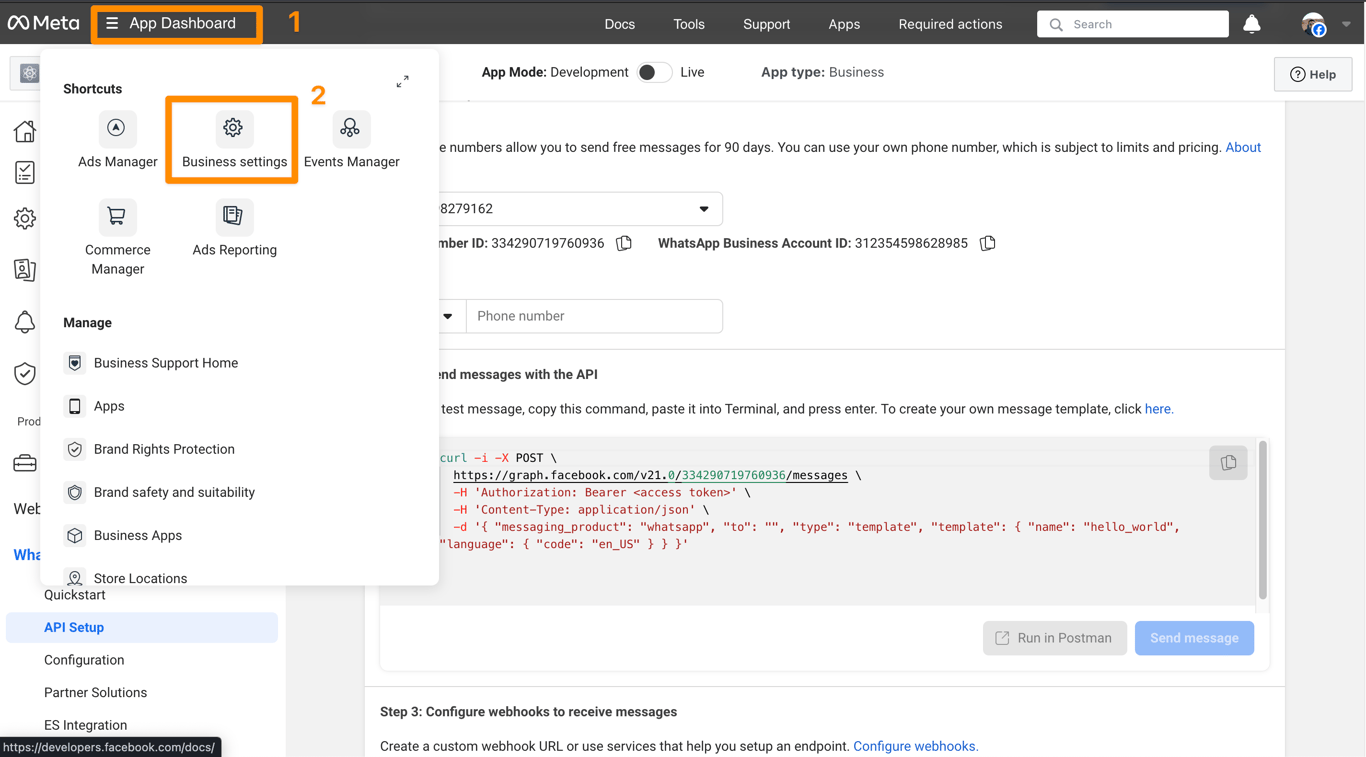
Click **App dashboard**, then **Business settings**.
![Open the App dashboard](https://imagedelivery.net/9tWkA7hllcrZnTVq32aKIg/a780a6d5-6f18-47c7-51b1-6b1db30c9500/public)

<br />

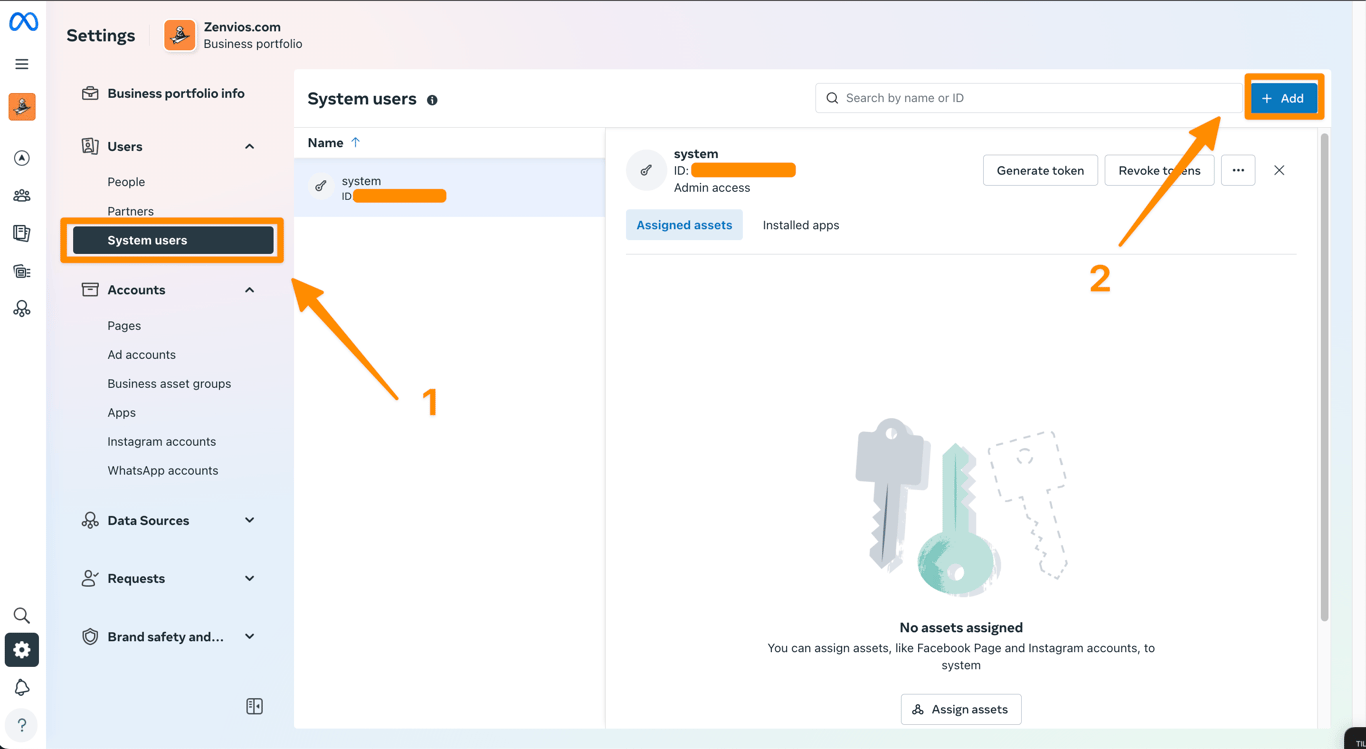
Click **System users**.

If no user exists yet, click **Add**.
![Click Add](https://imagedelivery.net/9tWkA7hllcrZnTVq32aKIg/520ce28f-391e-424e-a44c-a823b51e9500/public)

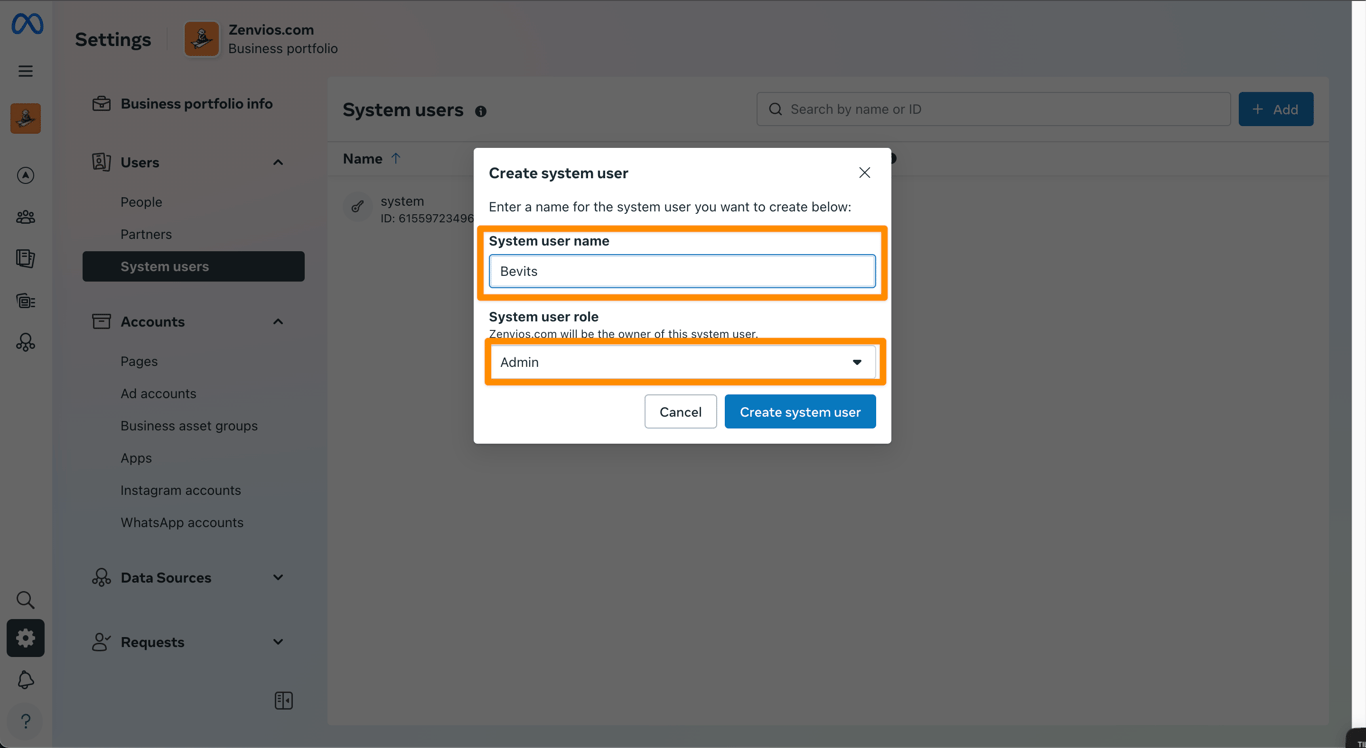
Enter a name and assign the Administrator role.
![Enter a name and assign the Administrator role](https://imagedelivery.net/9tWkA7hllcrZnTVq32aKIg/d70a5452-532e-4c43-81bc-b2764dcc0f00/public)

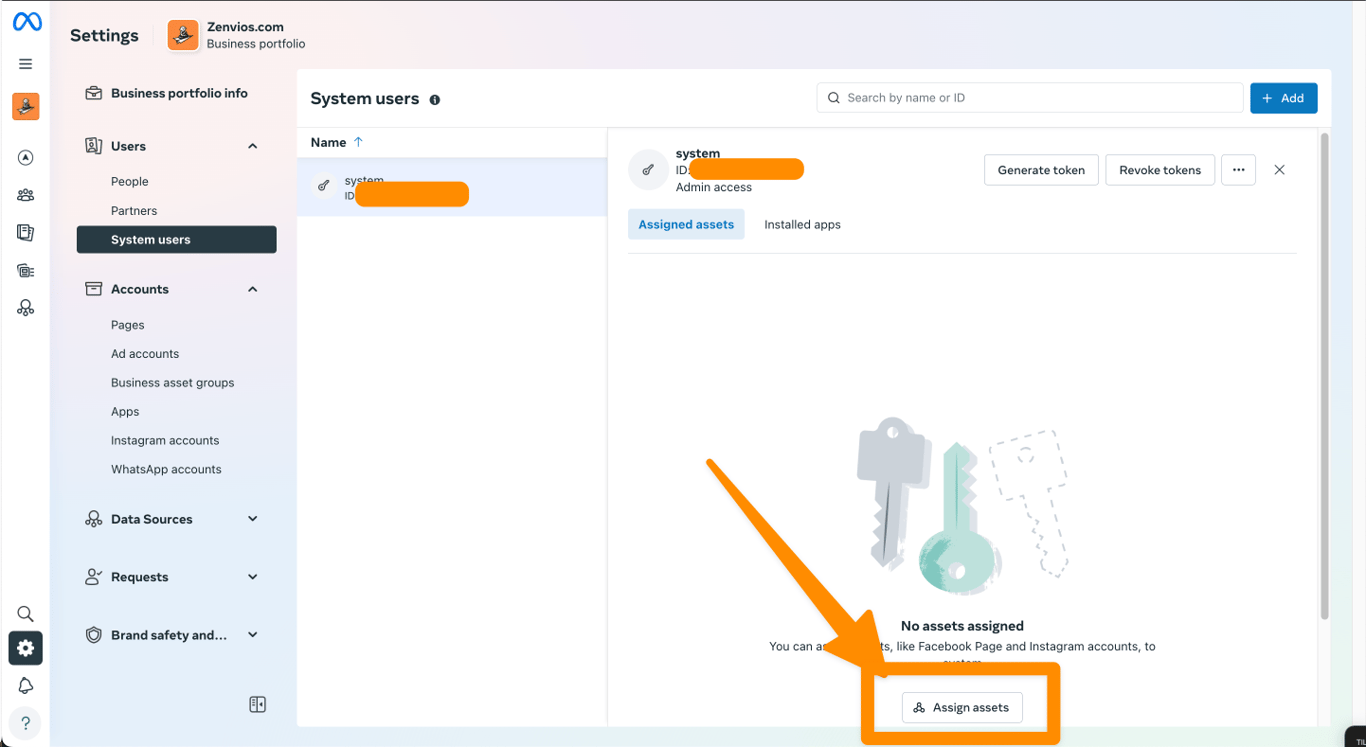
After creating the user, click **Assign assets**.
![Click Assign assets](https://imagedelivery.net/9tWkA7hllcrZnTVq32aKIg/a5715745-683f-4282-57ff-a03750986f00/public)

<br />

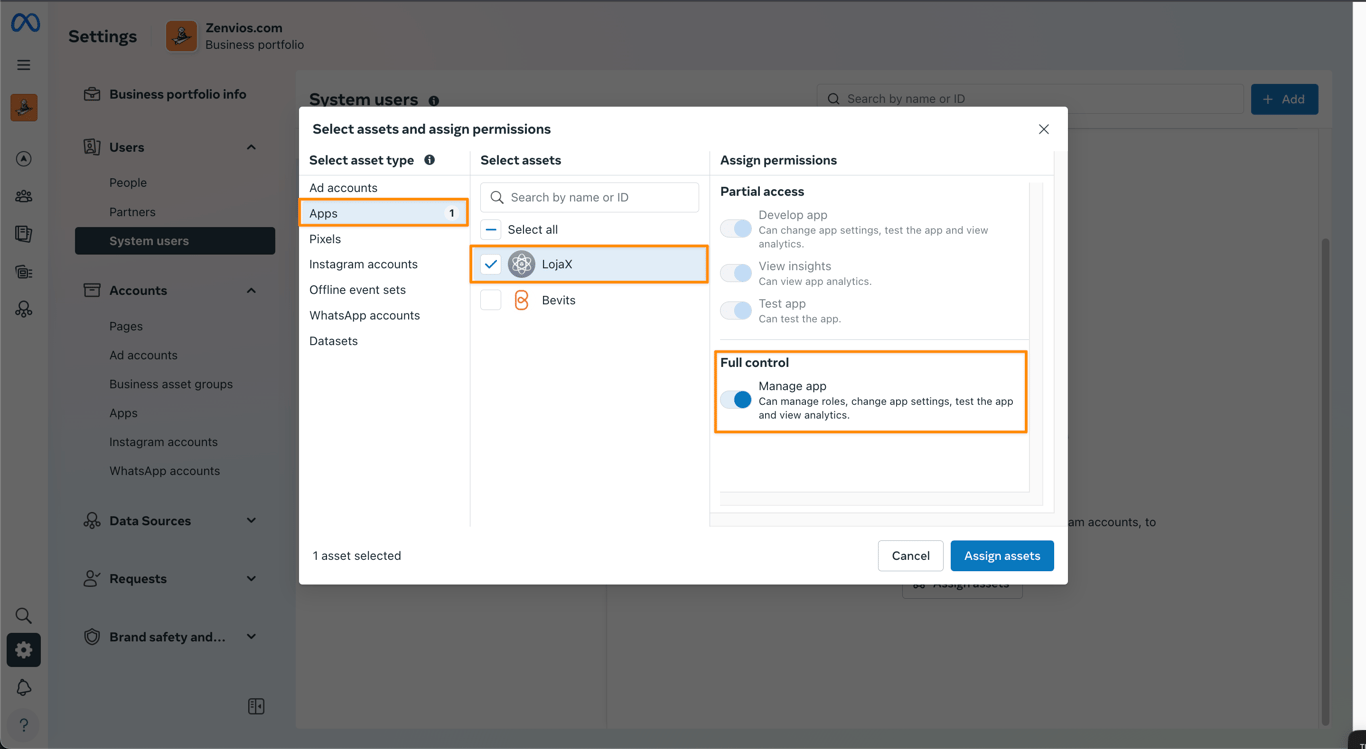
Click **Apps**, select the app you created, grant the **Manage app** permission, and click **Assign assets**.
![Select the app and grant the Manage app permission](https://imagedelivery.net/9tWkA7hllcrZnTVq32aKIg/8d82955a-8b90-4ff0-d490-69548e8a1400/public)

<br />

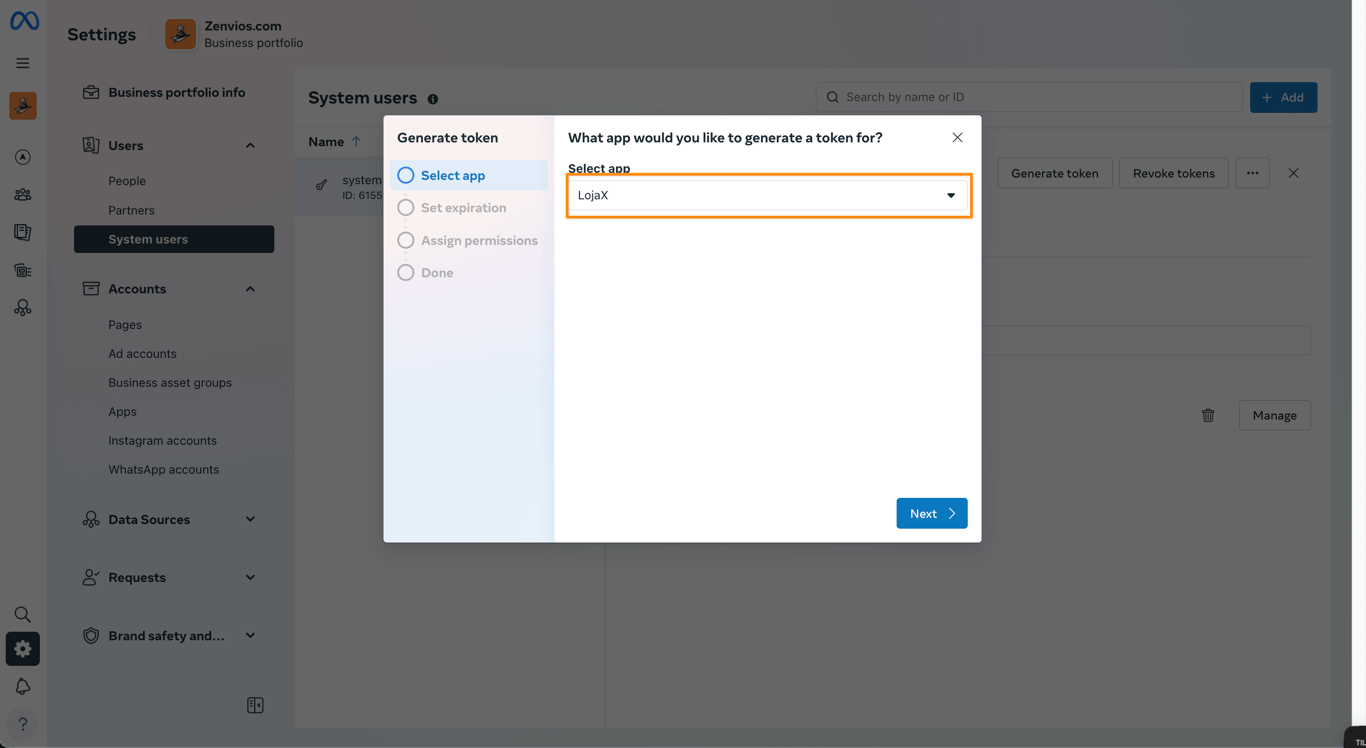
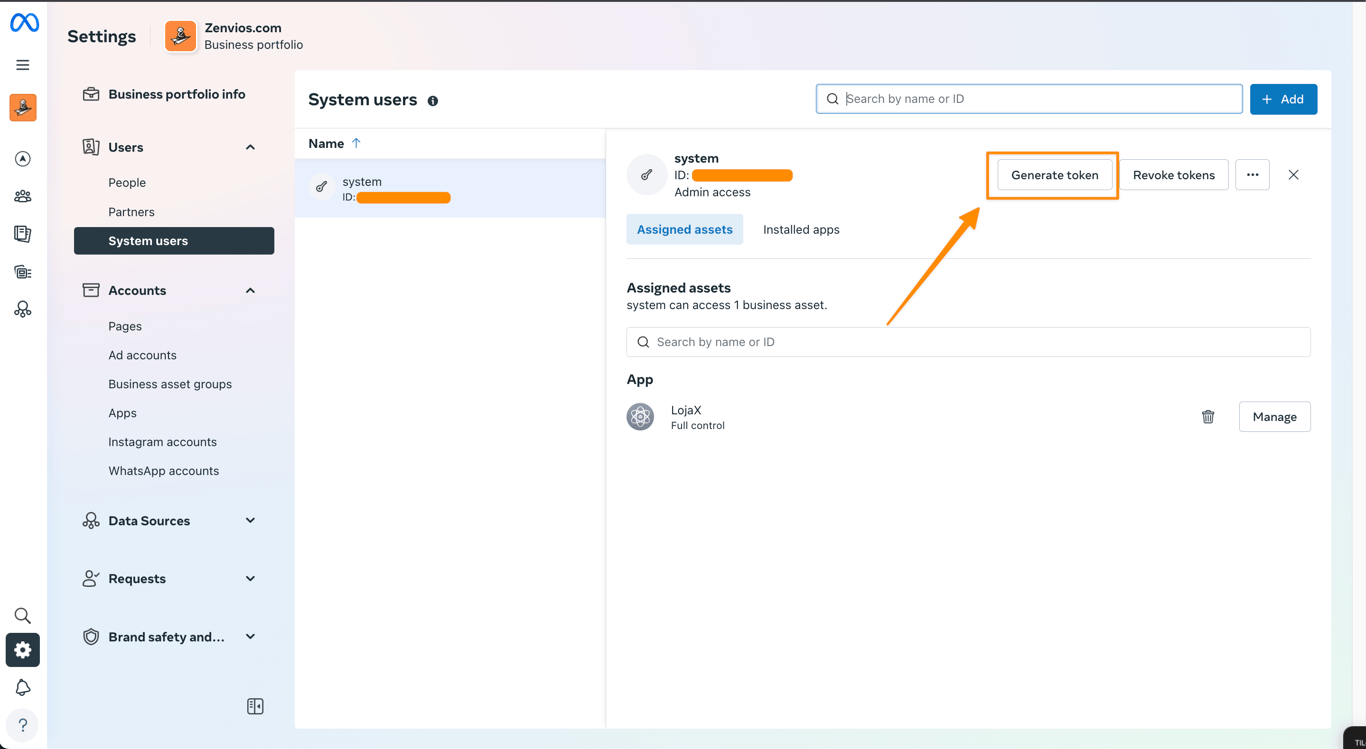
Click **Generate new token** and select the app you created.
![Click Generate new token](https://imagedelivery.net/9tWkA7hllcrZnTVq32aKIg/2f2250e1-4860-4b8c-8e03-fba8e09c3a00/public)

![Select the app you created](https://imagedelivery.net/9tWkA7hllcrZnTVq32aKIg/7a0693ca-9d77-43d6-ca48-e4d64f426d00/public)

<br />

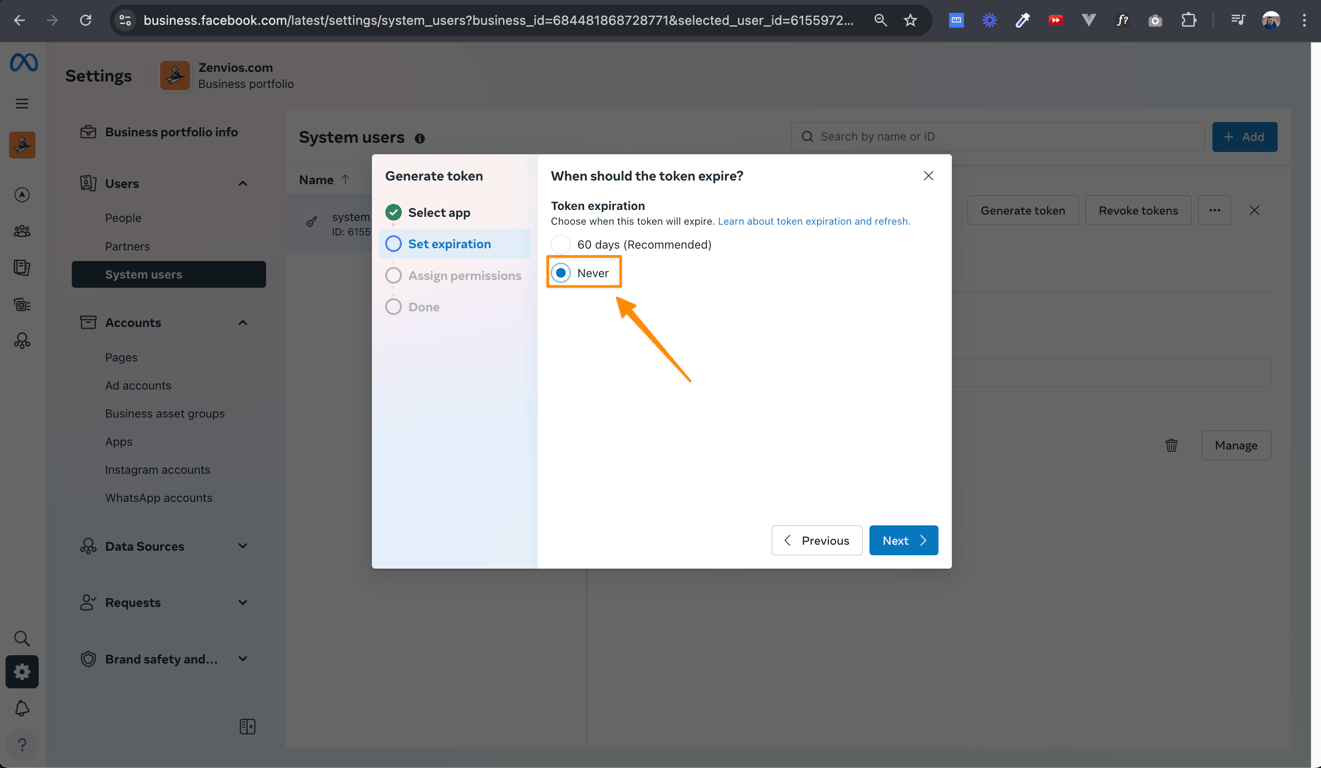
In the next window, select **Never** for token expiration.
![Select Never for token expiration](https://imagedelivery.net/9tWkA7hllcrZnTVq32aKIg/d9a7ccf9-f490-4505-987e-cc87e7520700/public)

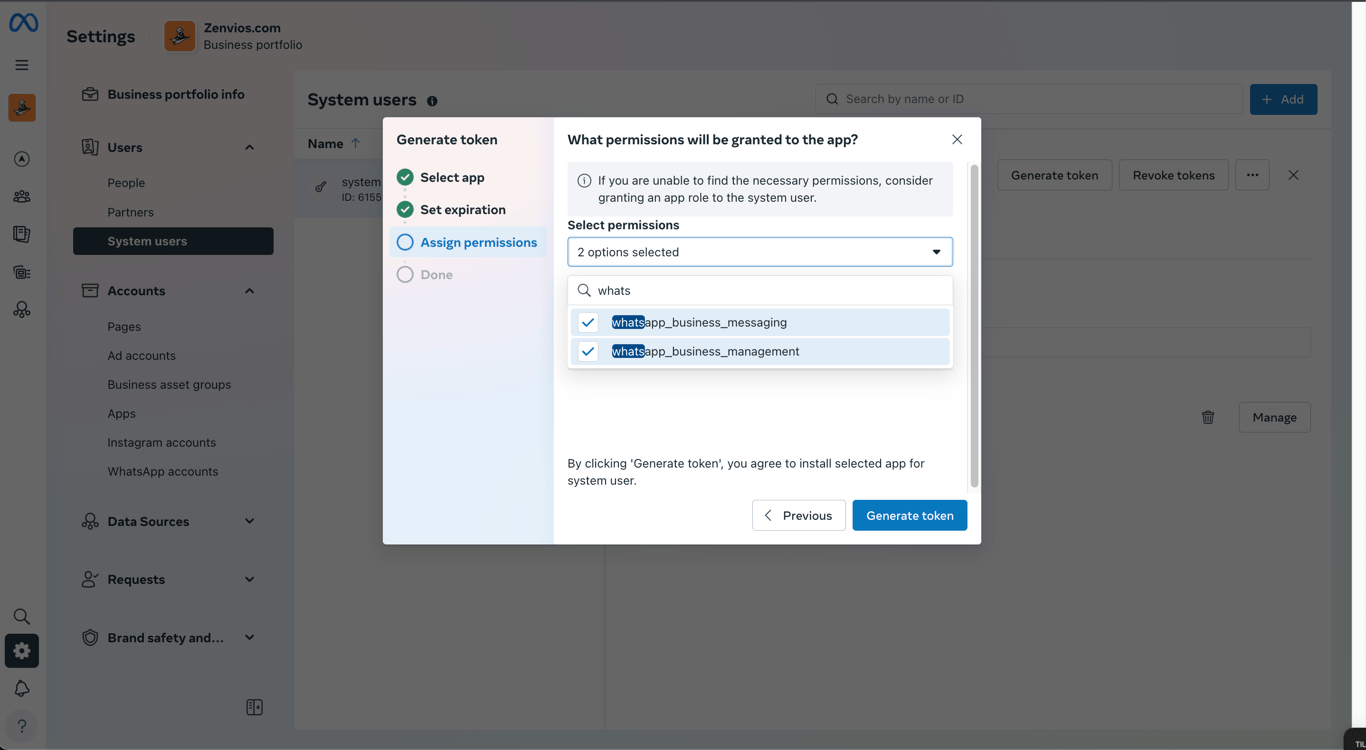
In the new window, select **whatsapp\_business\_messaging** and **whatsapp\_business\_management**, then click **Generate token**.
![Select the required permissions](https://imagedelivery.net/9tWkA7hllcrZnTVq32aKIg/0d346195-9d2a-4b66-e3e3-84e148722300/public)

<br />

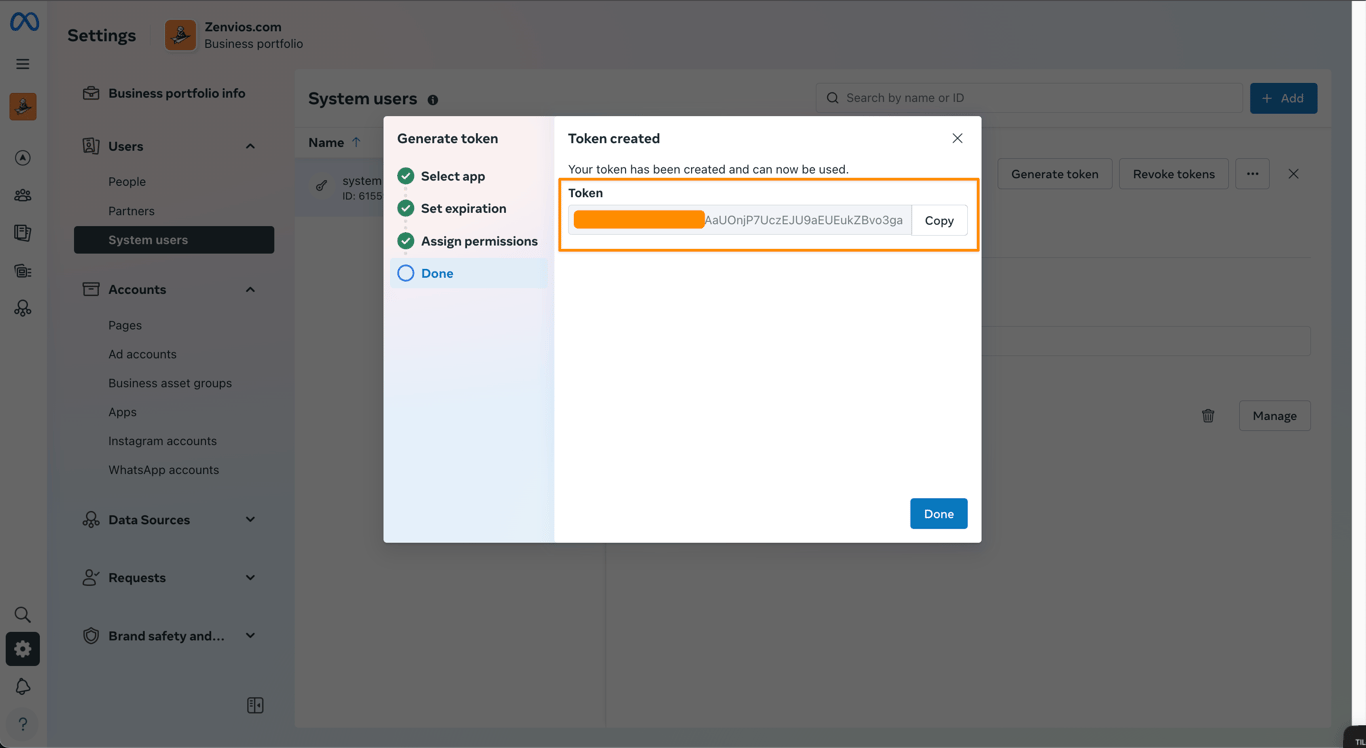
Your permanent token is ready. Copy it and store it somewhere safe.
![Copy and store the permanent token](https://imagedelivery.net/9tWkA7hllcrZnTVq32aKIg/72211e80-3b5a-4422-bb99-fdf703595b00/public)

### 4. Configure the token in Bevits

Great! You now have everything you need to complete the integration. 🎉

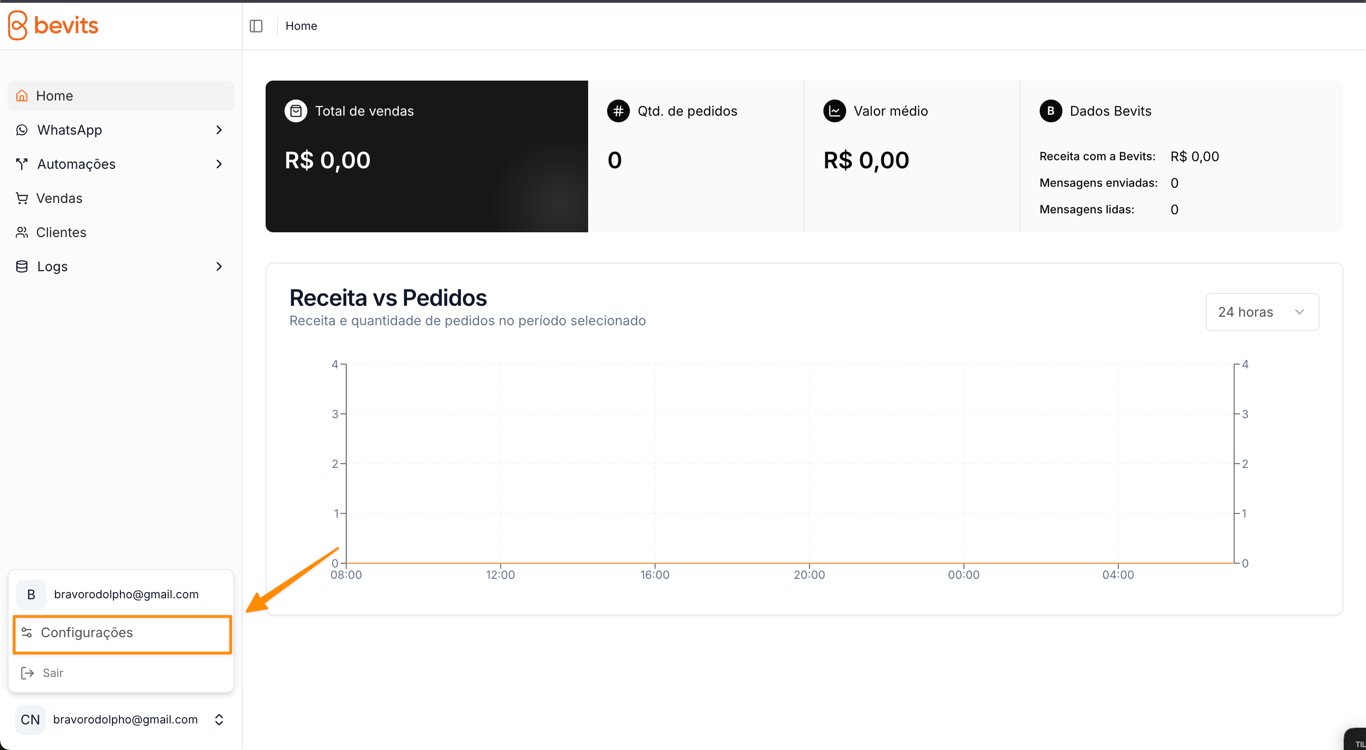
Open Bevits, click your email address in the bottom-left corner, and select **Settings**.
![Click Settings](https://imagedelivery.net/9tWkA7hllcrZnTVq32aKIg/c4a51c15-e112-4b95-9d10-493cf11c5000/public)

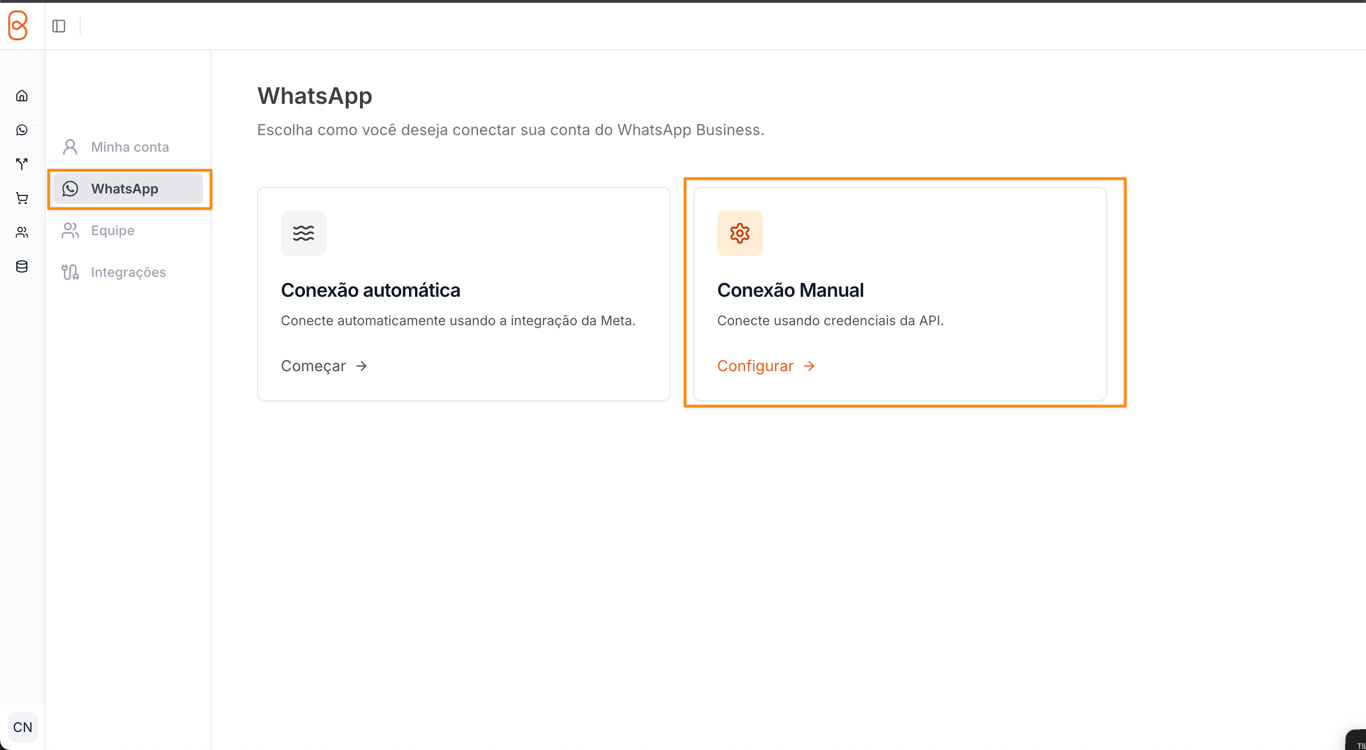
Click **WhatsApp**, then **Manual connection**.
![Click Manual connection](https://imagedelivery.net/9tWkA7hllcrZnTVq32aKIg/dfceaea5-1257-4688-cad3-b654ae937200/public)

Paste the information you saved earlier:

* Permanent token
* Phone number ID
* WhatsApp Business account ID

Click **Save**.

That's it! WhatsApp is now connected. 🎉

<div
  style={{
backgroundColor: "#ffe5d4",
color: "#000",
padding: "1rem",
borderRadius: "0.5rem",
}}
>
  ⚠️ Remember that messages sent through WhatsApp are paid directly to Meta.
  Make sure the Meta account where you generated the token has a payment method
  or available balance. If you have questions, contact support. We are here to
  help.
</div>

<br />